
How to Fix “Excluded by Noindex Tag” in Google Search Console
Seeing "Excluded by noindex tag" in Google Search Console? Find the page, remove the noindex at its real source, clear robots.txt, and…
Read article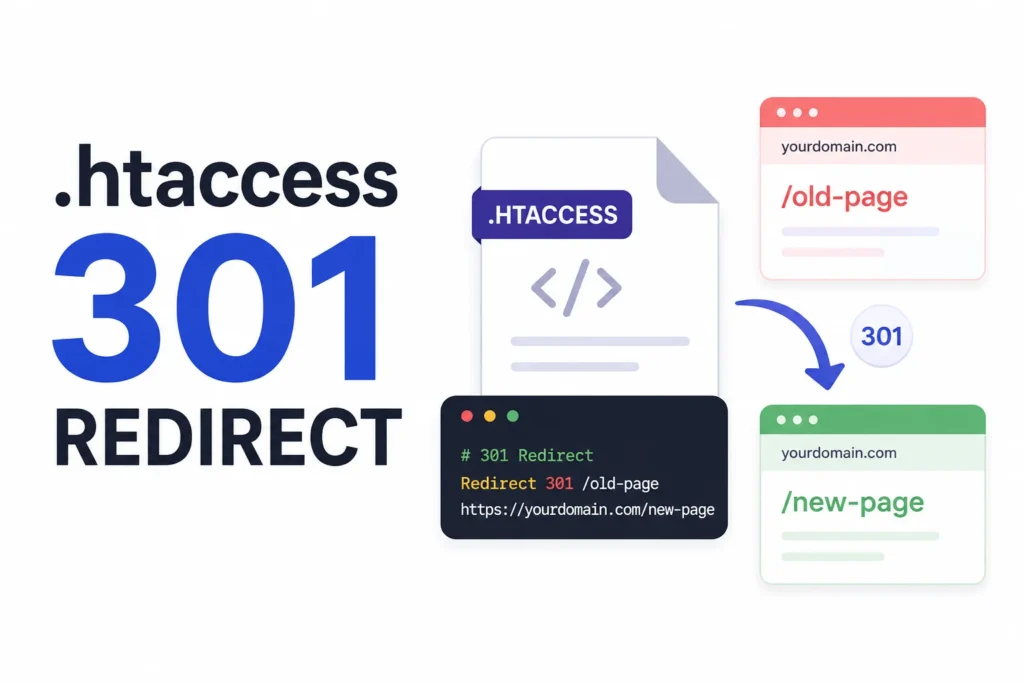
Move a page without a redirect and you lose two things at once: the visitors who bookmarked it, and the Google ranking you spent months earning. An htaccess 301 redirect fixes both. It tells browsers and search engines that a URL has moved for good, then hands almost all of its ranking signals to the new address. The catch is the syntax. One stray character in the .htaccess file can take a whole site offline. This guide covers the rules you will actually use, the mistakes that quietly break sites, and a faster way to build them with the free Pixellize htaccess redirect generator.
| What you want to do | Apache .htaccess rule | Type |
|---|---|---|
| Redirect one page | Redirect 301 /old-page /new-page | 301 |
| Redirect a folder | RedirectMatch 301 ^/old-folder/(.*)$ /new-folder/$1 | 301 |
| Move to a new domain | RewriteRule ^(.*)$ https://newdomain.com/$1 [R=301,L] | 301 |
| Force HTTPS | RewriteCond %{HTTPS} off | 301 |
| Remove www | RewriteCond %{HTTP_HOST} ^www\. | 301 |
| Temporary move | Redirect 302 /sale /summer-sale | 302 |
The number 301 is an HTTP status code. Where a 404 says “this page is gone,” a 301 says “this page moved, here is the new address, update your records.” Browsers follow it instantly. Search engines treat it as a signal to transfer the old URL’s ranking to the new one. Google confirms a 301 is the strongest way to consolidate those signals during a move, in its own redirects documentation.
You reach for a 301 in a handful of situations. Changing a URL structure or a slug. Migrating to a new domain. Switching the whole site from HTTP to HTTPS. Settling on www or non-www so you do not split ranking across two versions. Retiring an old post and pointing readers to a fresher one. In every case the goal is the same. Keep the link, keep the traffic, keep the rank.
Use a 301 redirect for any permanent move, like a new URL structure, an HTTPS switch, or a domain change, because it passes ranking signals to the new URL. Pick a 302 only when the move is temporary, such as a flash sale page or a maintenance swap, since it keeps the original URL indexed.
Here is the thing most people get wrong. They use a 302 for a permanent change because it is the default in some tools, then wonder why the new URL never ranks. A 302 tells Google to keep the old page in its index. If the move is forever, that is the opposite of what you want. When in doubt, and the change is meant to stick, choose 301.
Most powerful redirects use RewriteRule, which comes from Apache’s mod_rewrite module. It looks cryptic at first, but it is only four parts: the directive, a pattern that matches the old path, the destination, and a set of flags. Once you can read one rule, you can read all of them.
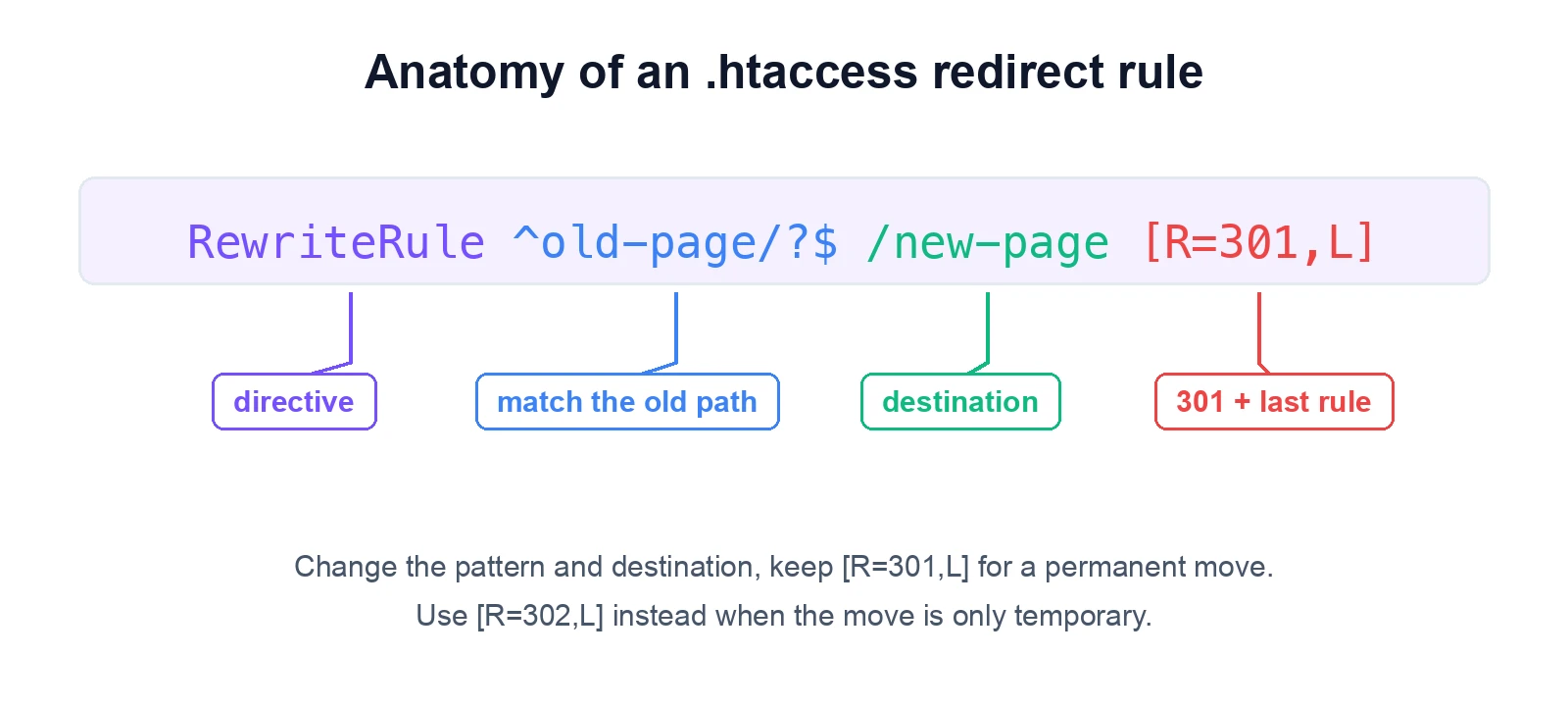
The [R=301,L] flag does the heavy lifting. R=301 sets the status code. L means “last rule,” so Apache stops processing once it matches. Swap in R=302 and the exact same rule becomes a temporary redirect. That one detail is the difference between keeping your rankings and losing them.
Every rule that uses RewriteRule needs RewriteEngine On once at the top of your .htaccess file. Add these blocks below WordPress’s own rules, not inside the # BEGIN WordPress section, or an update will wipe them out.
1. Redirect a single page. The simplest case. Old URL on the left, new URL on the right.
Redirect 301 /old-page.html /new-page.html2. Redirect a whole folder. Move every URL under /blog/ to /articles/ and keep the rest of the path.
RedirectMatch 301 ^/blog/(.*)$ /articles/$13. Redirect to a new domain. Send the entire old site to a new one, preserving every path and query string.
RewriteEngine On
RewriteRule ^(.*)$ https://newdomain.com/$1 [R=301,L]
4. Force HTTPS. Push every visitor to the secure version of your site.
RewriteEngine On
RewriteCond %{HTTPS} off
RewriteRule ^(.*)$ https://%{HTTP_HOST}/$1 [R=301,L]
5. Force www. Make example.com always become www.example.com.
RewriteEngine On
RewriteCond %{HTTP_HOST} ^example\.com [NC]
RewriteRule ^(.*)$ https://www.example.com/$1 [R=301,L]
6. Remove www. The opposite, which is more common today for cleaner URLs.
RewriteEngine On
RewriteCond %{HTTP_HOST} ^www\.example\.com [NC]
RewriteRule ^(.*)$ https://example.com/$1 [R=301,L]
7. Redirect by file extension. Point old .php pages to clean .html versions.
RedirectMatch 301 ^/(.*)\.php$ /$1.html8. Temporary redirect. A seasonal page that will revert later. Note the 302.
Redirect 302 /sale /summer-saleApache gives you two ways to redirect, and they come from different modules. Redirect and RedirectMatch live in mod_alias. RewriteRule lives in mod_rewrite. They are not interchangeable, and mixing them in one file is a classic source of redirect loops.
The rule of thumb: if you can describe the move as “this exact URL goes to that exact URL,” use Redirect. The moment a pattern or a condition enters the picture, switch to RewriteRule. Picking the right tool here is half the battle, and the Pixellize generator chooses it for you based on what you enter.
Redirect www to non-www with two lines in your htaccess file. The first line checks whether the host starts with www, and the second rebuilds the address without it and returns a 301. Place both below the rewrite engine line, then pick either www or non-www and keep that version for SEO.
RewriteEngine On
RewriteCond %{HTTP_HOST} ^www\.(.*)$ [NC]
RewriteRule ^(.*)$ https://%1/$1 [R=301,L]
The %1 grabs whatever the condition captured, which is your domain without the www. Pick www or non-www once, set it, and never look back. Running both versions live splits your ranking signals across two URLs that Google sees as separate sites.
Here is a detail most guides skip. The .htaccess file is an Apache feature. Nginx ignores it completely. If your host runs Nginx, dropping an .htaccess file on the server does nothing, and that confuses a lot of people during a migration. Nginx redirects live in the server block instead.
server {
    # Redirect one page
    location = /old-page { return 301 /new-page; }

    # Redirect a whole domain
    server_name olddomain.com;
    return 301 https://newdomain.com$request_uri;
}
Not sure which server you are on? Check your hosting panel, or look at the response headers for a Server: line. The Pixellize generator outputs both Apache and Nginx syntax from the same inputs, so you can switch with one click and never translate the rules by hand.
The .htaccess file sits in your site’s root folder, next to wp-config.php. It is hidden, so turn on “show hidden files” in your FTP client or file manager to see it. Before you touch anything, do one thing.
After a big move, audit the whole site for redirects that point at dead pages or chain through three hops. Pixellize has a free WordPress site audit walkthrough that covers broken links and redirect chains, and the canonical URL checker guide helps confirm Google sees the version you intend.
Most redirect disasters trace back to the same short list. Keep this nearby the first few times you edit the file.
L flag stops processing. Put specific rules above general ones, or the broad rule fires first.RewriteRule is ignored and nothing happens.Think of the .htaccess file like a light switch wired into your whole house. Flip it correctly and everything works. Cross one wire and the lights go out everywhere. That is exactly why generating the rules instead of hand-typing them removes most of the risk.
If memorizing flags and conditions is not your idea of a good afternoon, the Pixellize htaccess redirect generator builds the rules for you. Pick your server, enter the old and new paths, choose 301 or 302, and the correct syntax appears in a live preview. No mod_rewrite trivia required.
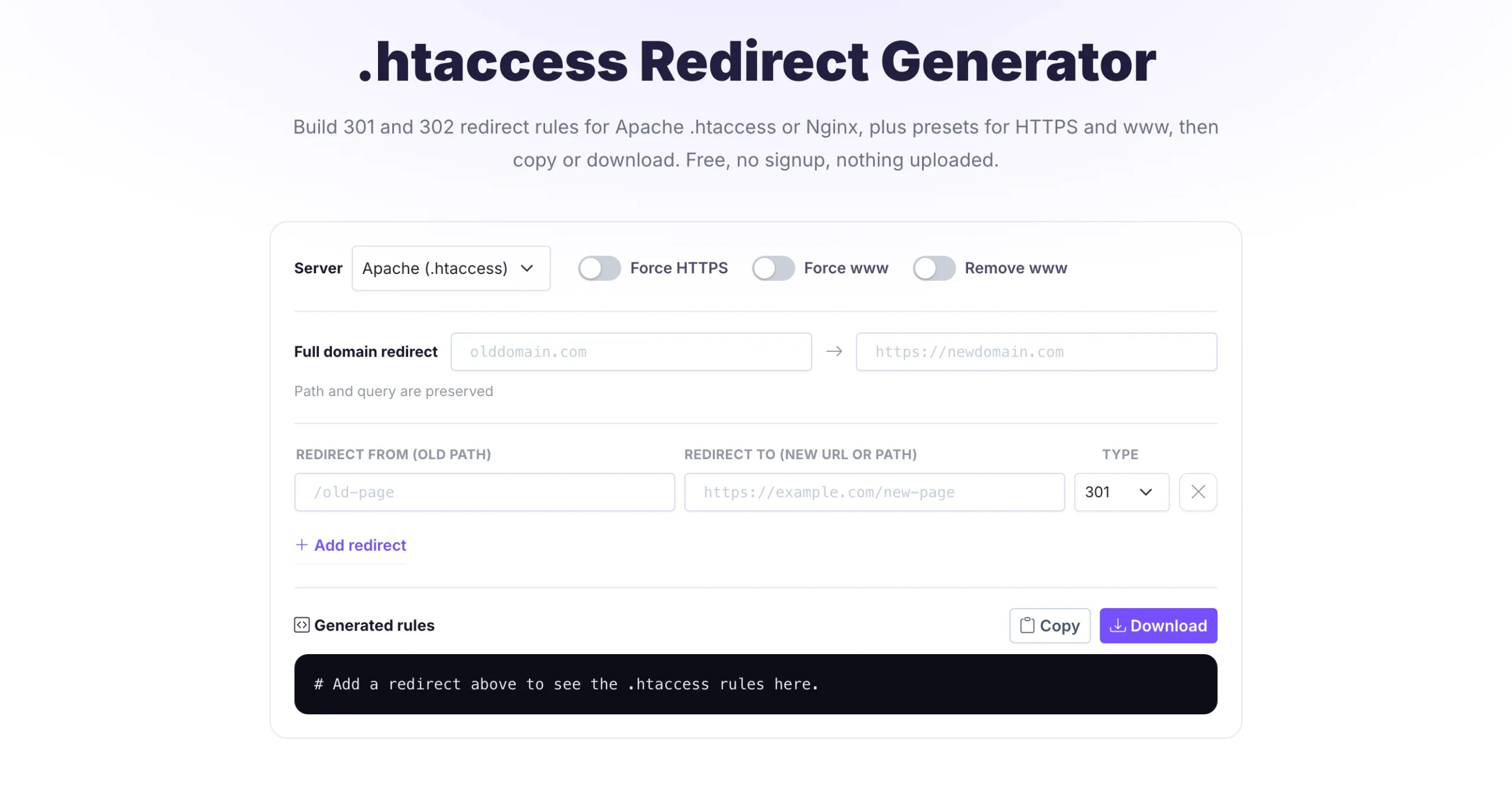
A few things make it quick. One-click presets handle Force HTTPS, Force www, and Remove www without writing a single condition. You can stack as many redirects as you need in one file. Paste a full URL and it trims to the path automatically. When you are happy, copy the rules or download a ready-to-upload file. Everything runs in your browser, so nothing is uploaded or stored.
It also pairs well with the rest of the Pixellize SEO toolkit. After setting up redirects, the robots.txt generator and the SERP snippet preview help you tidy up the rest of your technical SEO in the same browser tab.
An htaccess 301 redirect is one of the highest-impact SEO moves you can make, and it takes about a minute once you know the syntax. Permanent move, use 301. Temporary one, use 302. Back up the file, test in a private window, and confirm the status code before you walk away. Do that and a URL change costs you nothing in rankings or traffic.
When you would rather not wrestle with mod_rewrite, let the Pixellize htaccess redirect generator write the rules for you, for both Apache and Nginx, free and with no signup. Build your redirects, copy them in, and get back to the work that actually moved the page in the first place.
Add a single line to the .htaccess file in your site root: Redirect 301 /old-page /new-page. For pattern based moves like forcing HTTPS, use RewriteRule with the [R=301,L] flag instead. Save the file, then test the old URL in a private browser window to confirm it lands on the new address with a 301 status.
A 301 redirect is good for SEO when used correctly. It passes almost all of the old URL ranking signals to the new one, which is exactly what you want during a move. Problems only appear when you chain several redirects together or use a 302 by mistake, since a 302 keeps the old URL indexed.
A 301 redirect works instantly for visitors the moment you save the file. Search engines take longer. Google usually needs a few days to a few weeks to fully transfer ranking to the new URL, depending on how often it crawls your site. The redirect itself is live right away, so no traffic is lost in between.
A 301 is a permanent redirect and a 302 is temporary. A 301 tells search engines to move ranking to the new URL and forget the old one. A 302 tells them to keep the original URL indexed because it will return. Use 301 for permanent moves and 302 only for short term swaps like a sale page.
No. The .htaccess file is an Apache only feature, and Nginx ignores it completely. On an Nginx server you add redirects to the server block instead, using a return 301 directive. If you are not sure which server you run, check your hosting panel or look for a Server line in the response headers.
The most common causes are a missing RewriteEngine On line, rules placed in the wrong order, or a cached redirect in your browser. Apache reads rules top to bottom, so put specific rules above general ones. Always test in a private window, since browsers cache 301 redirects and can show stale results.

Founder and CEO of Pixellize.io, building AI-powered web tools and digital products with a focus on user experience and automation. M.Sc. Zoology, working at the intersection of technology, data analytics, and life sciences.