
How to Convert CSV to Excel (Without Breaking Your Data)
You double-click a CSV, Excel opens it, and your order IDs like 00123 are suddenly 123. Or every date flipped from day-month…
Read article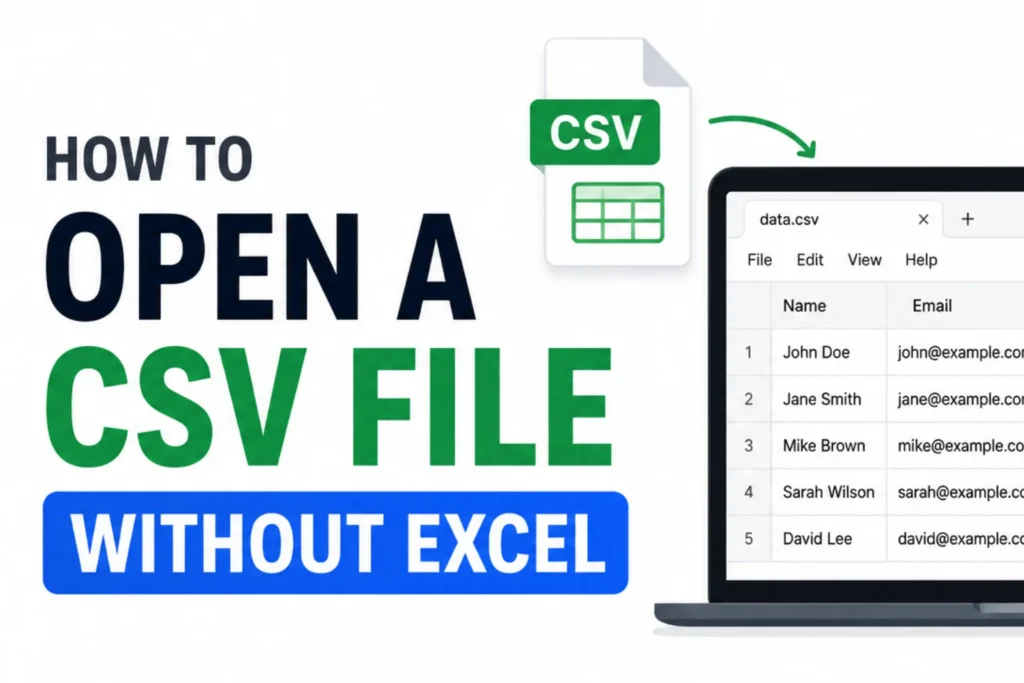
You double-click a CSV file and nothing good happens. Maybe it opens as a wall of commas in a text editor, or your computer asks which app to use and none of them is Excel. If you do not have Microsoft Office, that little file feels locked. Here is the reassuring part: you do not need Excel at all. This guide covers five free ways for how to open a CSV file without Excel, from an instant browser viewer by Pixellize to Google Sheets and other free online tools, so you can read and edit the data in a clean table in seconds.
CSV stands for comma-separated values. It is just plain text where each line is a row and commas mark the columns. That simplicity is why almost every app can export one, from your bank to your email contacts to an online store.
The catch is that plain text is easy for programs to read and awkward for people. Think of a CSV like flat-pack furniture. All the parts are there, but you need something to assemble them into a shape you can use. Excel is one assembler. It is not the only one, and it is far from the fastest for a quick look.
To open a CSV file without Excel, use a free online tool that reads the format. The five common options are the Pixellize CSV Viewer, Google Sheets, CSVJSON, Konklone, and Gigasheet for very large files. Each shows the same rows, so the right pick depends on whether you want to edit, share, or convert them.
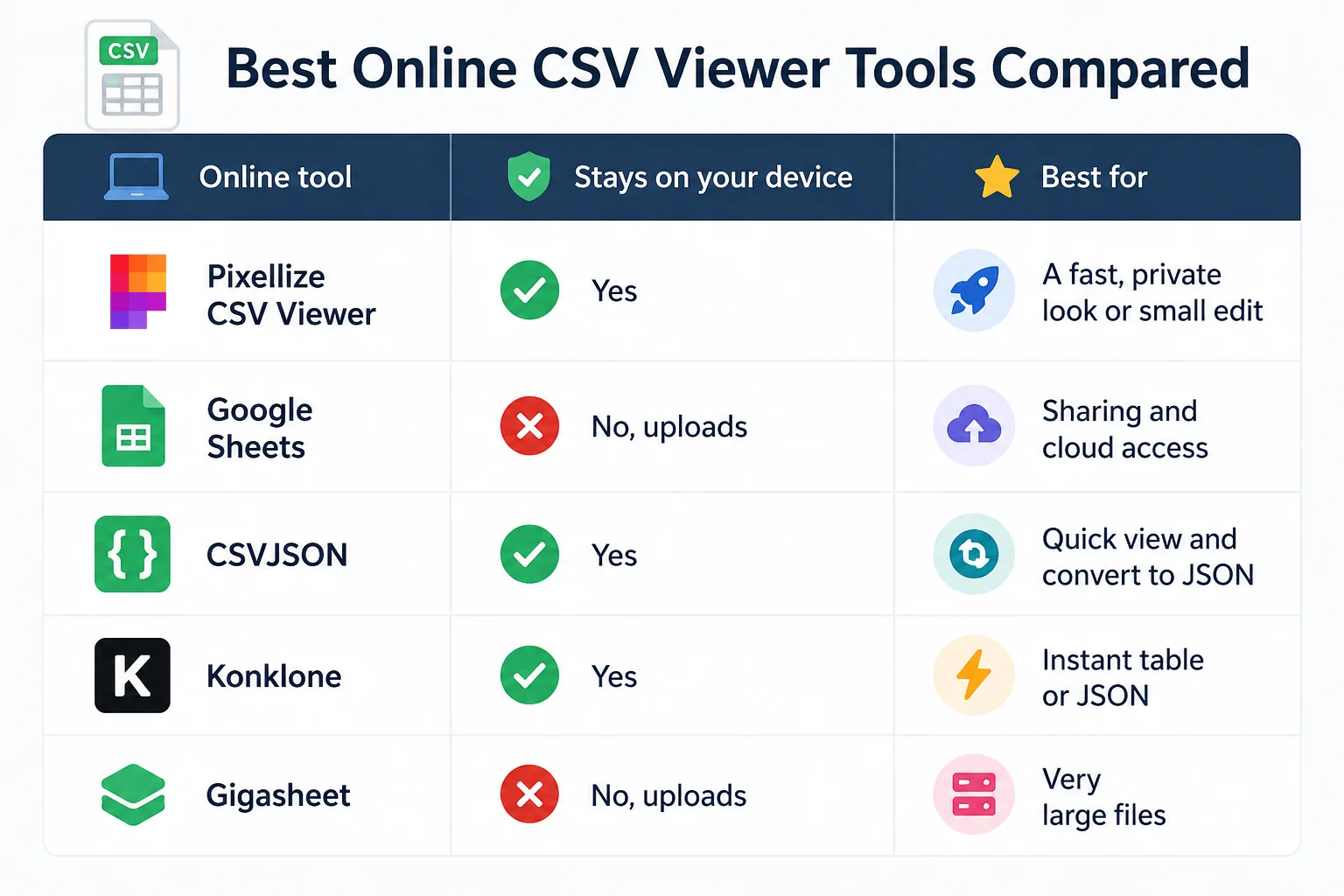
| Online tool | Stays on your device | Best for |
|---|---|---|
| Pixellize CSV Viewer | Yes | A fast, private look or small edit |
| Google Sheets | No, uploads | Sharing and cloud access |
| CSVJSON | Yes | Quick view and convert to JSON |
| Konklone | Yes | Instant table or JSON |
| Gigasheet | No, uploads | Very large files |
The quickest route needs no install and no account. The Pixellize CSV Viewer and Editor reads the file on your device and never uploads it, which matters when the data is a customer list or anything private. Here is the whole flow.
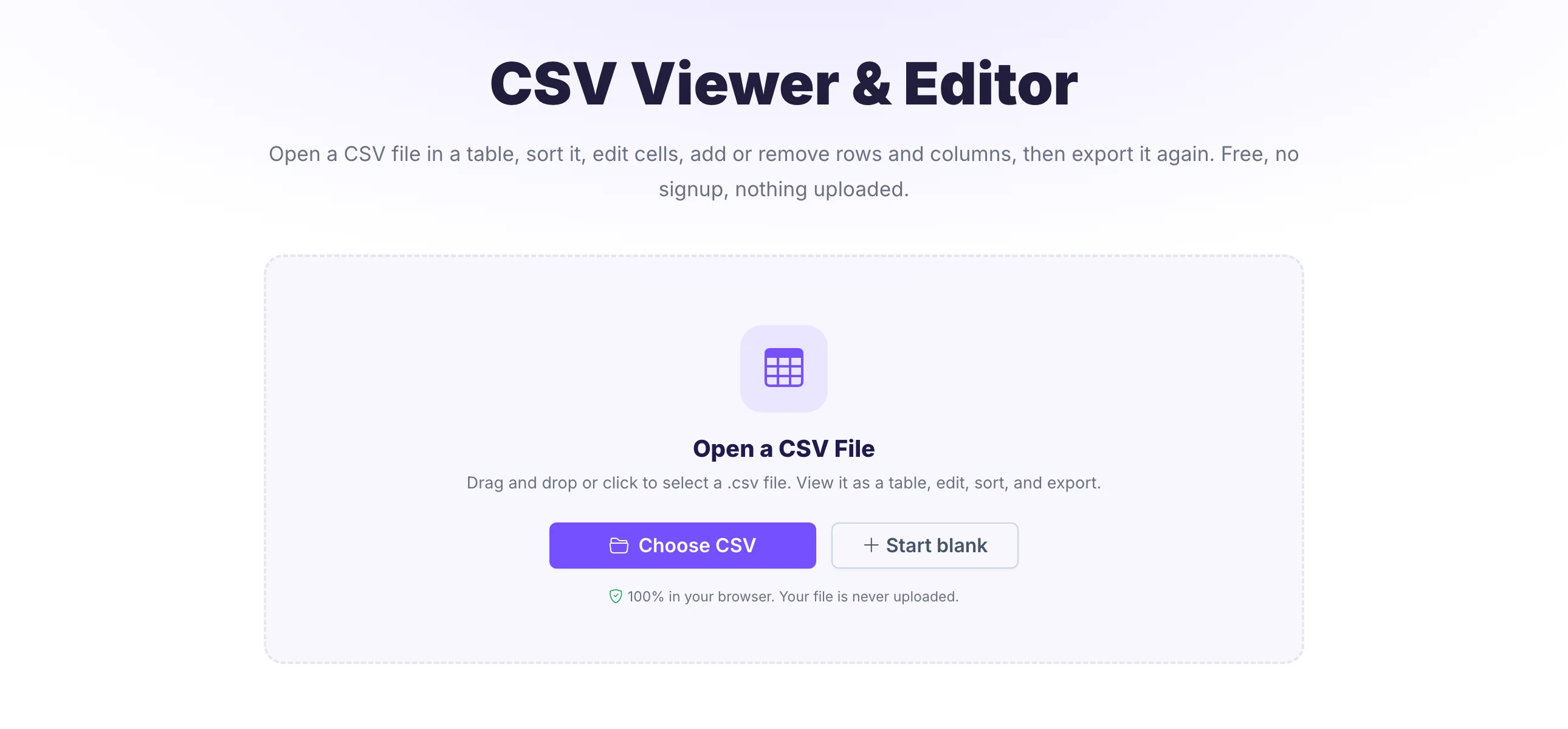
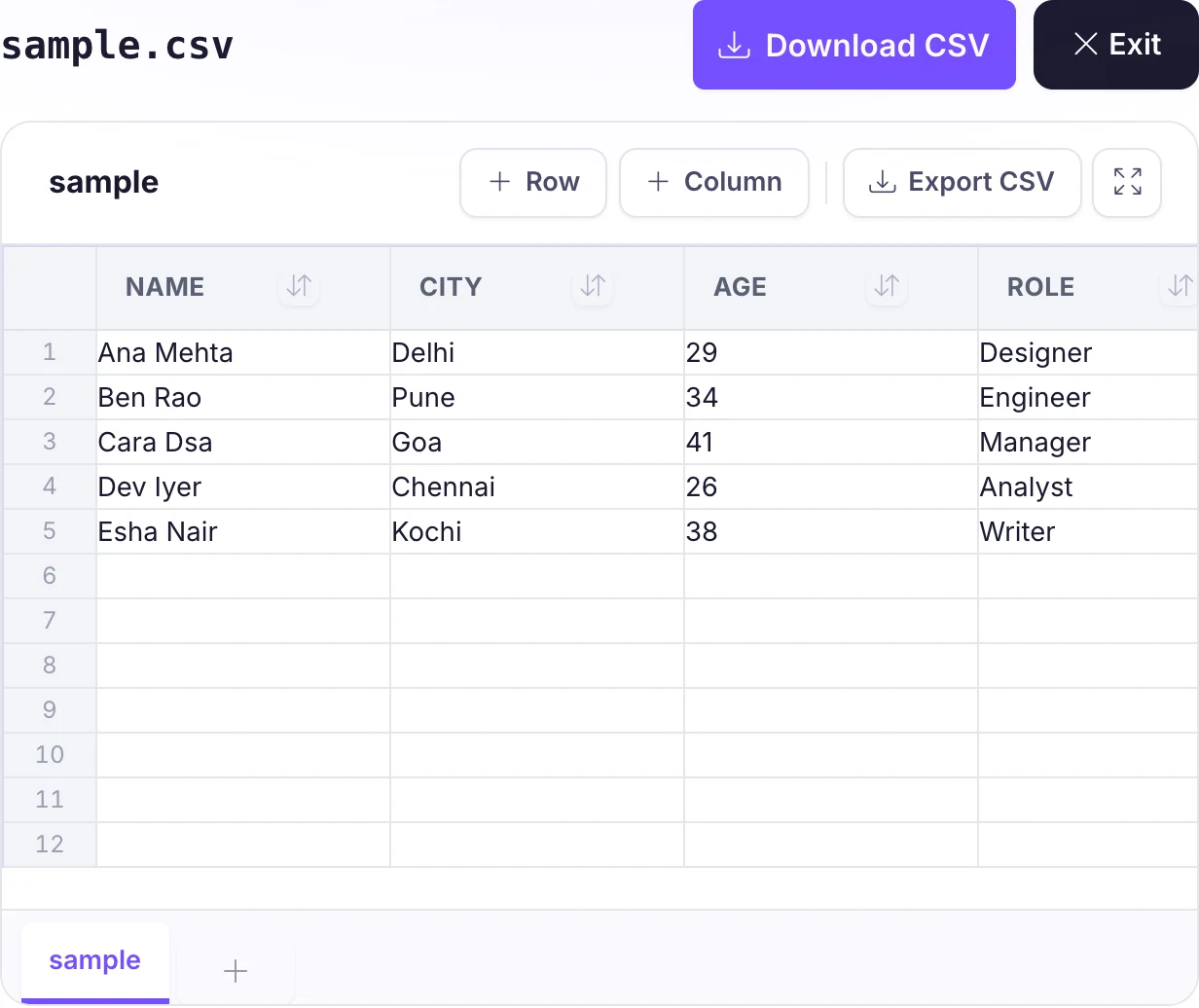
This is the option I reach for most, because opening a full spreadsheet app just to glance at forty rows is overkill. A browser tab, like the Pixellize viewer, loads faster than Excel ever will.
Google Sheets is free with any Google account and runs entirely in the browser. Go to Sheets, choose File then Import, upload your CSV, and pick “Replace spreadsheet”. Your data lands in a familiar grid you can sort, filter, and share with a link.
Keep in mind two tradeoffs. The file gets uploaded to Google’s servers, so skip it for sensitive data. And very large CSVs, past a few hundred thousand cells, can slow Sheets down or hit its limits.
CSVJSON is a free browser tool built around CSV and JSON. Paste your data or upload the file and it lays the rows out as a table you can scan, then convert to JSON if a developer needs it. Everything runs in your browser, so the file stays on your device.
It leans toward conversion rather than heavy editing, which makes it a strong pick when you want a quick look and a format switch in one place. For sorting, filtering, and cell edits, a full viewer like Pixellize gives you more control.
Konklone, also known as the JSON to CSV converter, opens a CSV in the browser and turns it into a clean table or JSON in one step. Paste the CSV or drop the file, and the result appears instantly with nothing sent to a server.
It is a fast, no-frills option when you mainly want to read the rows or hand them off as JSON. There is no editing layer, so treat it as a viewer and converter rather than a spreadsheet.
Got a massive export that freezes other tools? Gigasheet is an online spreadsheet built for large data, and it opens CSV files with millions of rows in the browser. You upload the file, then sort, filter, and explore it like a giant sheet.
It is the online pick for files too big for a normal viewer. Keep one tradeoff in mind: large uploads go to its servers, so for private data a fully in-browser tool like the Pixellize viewer keeps everything on your device.
Once the CSV is open, you often need to do something with it. A few free Pixellize tools handle the next step right in the browser, with nothing uploaded.
The one thing to check before you paste sensitive data into any online tool is whether it uploads the file. The Pixellize CSV tools run entirely in your browser, so your data never leaves your device.
Knowing how to open a CSV file without Excel comes down to the job. For a fast, private look or a small edit, the Pixellize viewer wins because nothing is uploaded. For sharing, use Google Sheets. To also convert to JSON, use CSVJSON or Konklone. For a very large file, Gigasheet handles the size.
Did you know most of these headaches come from the same root, a mismatch between how the file was saved and how the app reads it? Pick a tool like the Pixellize viewer that lets you set the delimiter and encoding and they mostly disappear. If you also need to clean or reshape the data, our guide on how to edit a CSV file online goes deeper.
If you want one answer for how to open a CSV file without Excel, drop it into a browser viewer and read it as a table in seconds. Excel is fine when you already have it, but it is heavy and slow for a quick check, and plenty of people do not own it. The free Pixellize CSV Viewer and Editor opens, sorts, edits, and exports your file in the browser with nothing uploaded, so you can get in, fix what you need, and get out.
Dealing with data in code too? Here is how to turn JSON into TypeScript interfaces.
Dealing with Word files as well as spreadsheets? Here is how to get a word to pdf converter online free of daily caps and watermarks.
Use a free tool that reads the format. Drop the file into a browser CSV viewer for an instant table, or open it in Google Sheets, LibreOffice Calc, or Apple Numbers. Each shows the same rows and columns, so pick the one that matches whether you want to read, edit, or share.
For a fast look with no install, a browser CSV viewer like the Pixellize CSV Viewer is best. Google Sheets is ideal when you want to share the data with a link. For very large files, an online sheet like Gigasheet handles the size in the browser.
Yes. Open it in any browser with an online viewer like the Pixellize CSV Viewer, Google Sheets, or CSVJSON, with nothing to install. Apple Numbers is preinstalled too, but it can reformat numbers and dates, so a browser viewer keeps the exact text.
It opened in a text editor, which shows the raw comma-separated values with no columns. To see a proper table, open the same file in a CSV viewer or a spreadsheet app. If a spreadsheet still shows one column, the file uses a semicolon or tab, so set the correct delimiter.
It depends on the tool. Browser-based viewers that process the file on your own device, like the Pixellize CSV Viewer, never upload it, so the data stays private. Tools that upload to a server, including Google Sheets, are best avoided for sensitive information.
Choose a tool that lets you set the delimiter and encoding, and one that keeps text as text so leading zeros survive. Selecting UTF-8 on import fixes garbled characters. A browser viewer or LibreOffice gives you this control, while some apps auto-format silently.

Founder and CEO of Pixellize.io, building AI-powered web tools and digital products with a focus on user experience and automation. M.Sc. Zoology, working at the intersection of technology, data analytics, and life sciences.