
How to Convert CSV to Excel (Without Breaking Your Data)
You double-click a CSV, Excel opens it, and your order IDs like 00123 are suddenly 123. Or every date flipped from day-month…
Read article
Open a CSV in the wrong program and it fights back. Double-click a file of customer IDs in a spreadsheet and watch 00042 turn into 42, or a tracking number collapse into 1.2E+11. You only wanted to fix one typo. Learning how to edit a CSV file online saves you from that. You get a clean table in your browser, change what you need, and export it back without anything quietly rewriting your data. This guide walks through it with the free Pixellize CSV Viewer and Editor, plus the traps worth knowing.
The easiest way to edit a CSV file online is a browser-based table editor: you open the file, click any cell to change it, add or delete rows and columns, then export. Pixellize does all five steps on one page, with no signup and no upload, in under a minute.
Here is the thing about CSVs. They look simple, just rows of text split by commas, but that plainness is exactly why a full spreadsheet app is overkill for a quick fix. A focused editor shows the grid, lets you make the edit, and gets out of the way. No row limits to worry about, no install, no account.
The flow is short. Most people are done before a desktop spreadsheet would have finished loading.
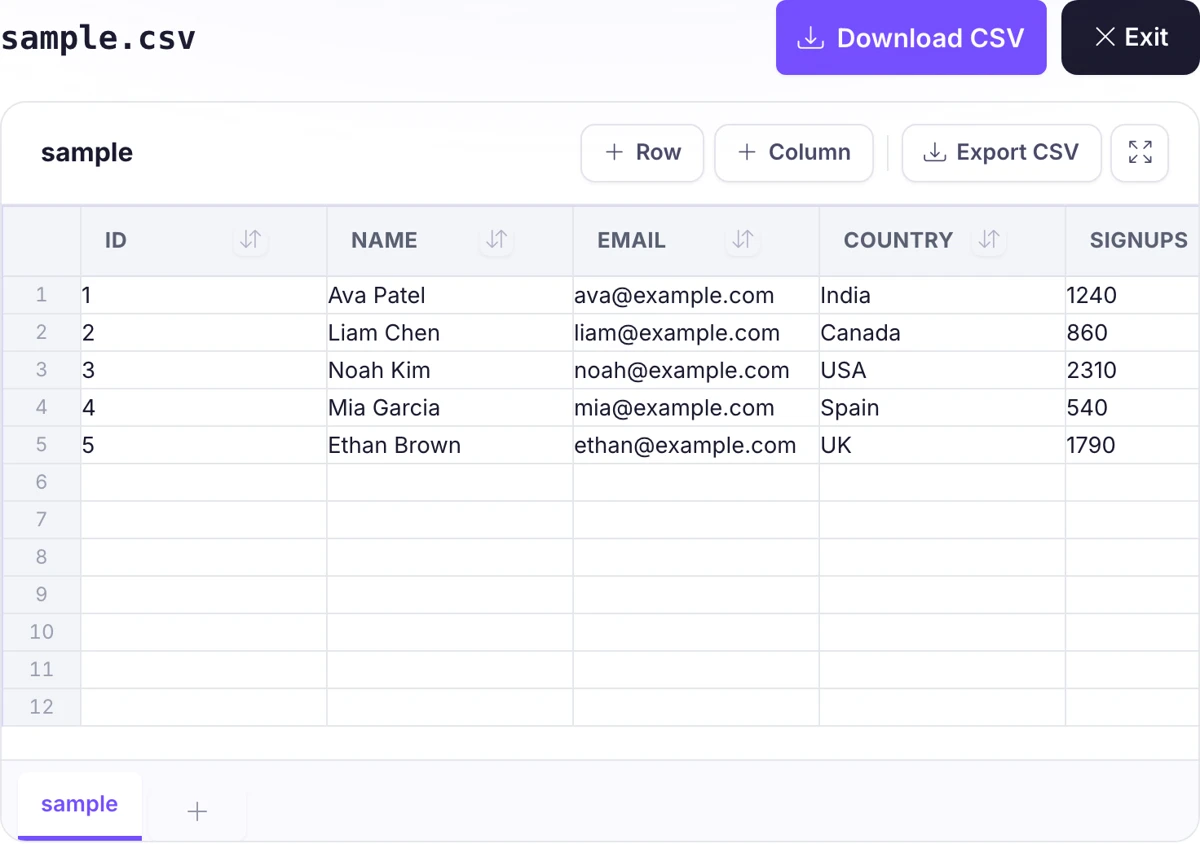
That is the whole loop. If you want to try it on your own file right now, the Pixellize CSV Viewer and Editor opens in a new tab and keeps everything local.
Editing single cells is only half the job. The real time savers are the bulk actions. Click a column header to sort it, alphabetically for text or by value for numbers, which makes spotting outliers or duplicates fast. Type in the search box to filter rows down to the ones that match, so a 5,000-line export becomes the twelve rows you actually care about.
Need to change the shape of the data, not just its contents? Add a column for a new field, drop a column full of junk you exported by accident, or insert rows where they belong. Keep in mind that sorting and filtering are for viewing and cleaning; when you export, Pixellize writes the table exactly as it stands on screen.
Not every CSV uses commas. Files from German or French systems often use a semicolon, because the comma is their decimal mark, and data pulled from a database frequently arrives tab-separated. A good editor lets you pick the delimiter on the way in and on the way out, so a semicolon file does not land as one long mashed-together column.
Then there are quoted fields. The CSV convention, described in RFC 4180, wraps a value in double quotes when it contains a comma, a line break, or a quote of its own. Think of an address like "123 Main St, Apt 4", that comma is part of the value, not a column break. Pixellize reads those quoted fields, escaped quotes, and embedded line breaks correctly, so the column count stays right instead of drifting halfway down the file.
This caught me off guard the first time it happened. The biggest risk to a CSV is not editing it, it is opening it in a spreadsheet by double-click. The app guesses data types and silently reformats your values, and you often do not notice until the file is already saved and shared.
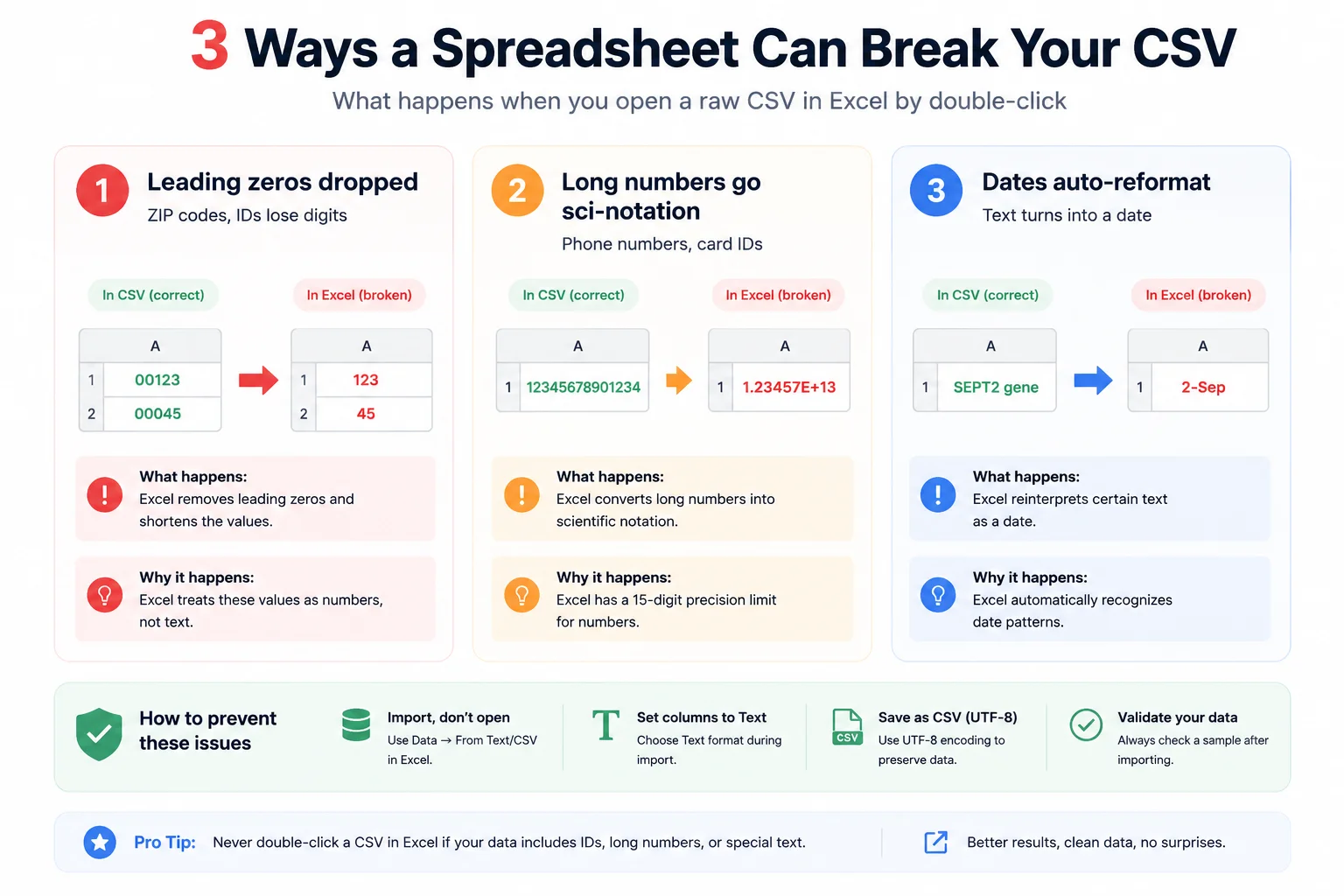
02134 or a product ID like 00123 gets read as a number and the zeros drop off. Microsoft documents this and the fixes in its own support guide.1.23457E+14 and the exact value is gone.A browser CSV editor sidesteps all of this because it treats every cell as plain text, not a value to guess at. What you typed is what gets written. If your data has IDs, codes, or long numbers, that alone is reason enough to skip the spreadsheet. Open it in the Pixellize CSV Viewer and Editor instead and your zeros stay put.
Each tool has a job it is best at. For a quick, safe edit of the raw file, a focused editor wins. For heavy formulas or charts, a full spreadsheet is the right call. Here is how they compare for everyday CSV work.
| What you need | Pixellize CSV Editor | Excel | Google Sheets |
|---|---|---|---|
| Opens raw CSV without reformatting | Yes | No, guesses types | Partly |
| Install or account | None | Paid install | Google account |
| File leaves your device | No, stays local | No | Yes, uploaded |
| Pick export delimiter | Comma, semicolon, tab | Limited | Limited |
| Best for | Quick clean edits | Formulas, charts | Collaboration |
If your task is to fix a few cells, drop a column, or reshape an export before it goes somewhere else, the Pixellize editor is the shortest path. When you later need to convert that data, Pixellize also has a CSV to JSON converter and a JSON to CSV converter, and a CSV splitter for breaking a huge file into smaller ones.
Editing CSV files online is safe when the tool processes data in your browser instead of uploading it. Pixellize reads and edits your file entirely on your device, so nothing is sent to a server, logged, or stored. For sensitive data, always confirm the editor says it runs locally before you load a file.
This is the main reason a local editor beats a cloud spreadsheet for private exports like customer lists or finance data. The file never travels. You can even disconnect from the internet after the page loads and the tool keeps working, which is a quick way to prove to yourself that nothing is being sent anywhere.
Knowing how to edit a CSV file online comes down to one habit: stop double-clicking data files into a spreadsheet that wants to reformat them. Open the file in a plain table, make your change, and export with the delimiter you need. Your IDs, zeros, and long numbers all survive. The Pixellize CSV Viewer and Editor is free, runs fully in your browser, and never uploads a thing, so give it your next messy export and see how much faster a quick fix can be.
Yes. A browser-based CSV editor opens the file in a table where you click cells to edit, add or remove rows and columns, and export, with no Excel or other software installed. Pixellize runs entirely in your browser, so you can edit a CSV on any device, including a Chromebook or phone, without paying for a spreadsheet app.
Go to a free online CSV viewer, then drag your file in or click to choose it. The Pixellize CSV Viewer and Editor shows your data as a table right away, with headers pinned and rows numbered. There is no signup, and your file is read on your device rather than uploaded to a server.
It depends on the tool. Spreadsheets often reformat values, dropping leading zeros or turning long numbers into scientific notation. A plain-text CSV editor like Pixellize treats every cell as text, so what you type is exactly what gets saved. That keeps ZIP codes, IDs, and long order numbers intact.
A comma is the default, but semicolons and tabs are common too. European exports often use semicolons because the comma is their decimal separator, and database dumps frequently use tabs. Pixellize lets you choose the delimiter when you open a file and again when you export, so the columns line up correctly both ways.
It is safe if the editor processes the file locally and does not upload it. Pixellize never sends your CSV to a server, nothing is logged or stored, so even sensitive data like customer or finance exports stays on your device. Always check that an editor says it runs in your browser before loading private data.
Click the export or download button, choose your delimiter, and the file saves to your device. In Pixellize you press Download CSV and pick comma, semicolon, or tab. The edited file downloads immediately, ready to import wherever you need it, with no account or email required.

Founder and CEO of Pixellize.io, building AI-powered web tools and digital products with a focus on user experience and automation. M.Sc. Zoology, working at the intersection of technology, data analytics, and life sciences.