
How to Create a ZIP File Online (No Software Needed)
Create a ZIP file online free in your browser, no software or signup. Bundle multiple files or a folder on Windows, Mac,…
Read article
You get a ZIP file in your email, and nothing happens when you double click it. Maybe it is a work laptop that blocks installs, a Chromebook, or a phone with no unzip app. The good news: you can open a ZIP file online in about ten seconds, with no software and no account. This guide walks through the fastest way to do it, using the free Pixellize unzip tool, plus how to handle phones, password-protected archives, and files that refuse to open.
Here is the short version. Most people reach for 7-Zip or WinRAR out of habit, but you do not need either if you just want to see what is inside a ZIP and pull out a file or two. A browser-based tool does that instantly, and the private ones never send your archive anywhere.
Every method opens a ZIP, but they are not equal on speed, privacy, or what they need installed. Here is how they stack up.
| Method | Install needed | Works on a locked-down PC | Privacy | Best for |
|---|---|---|---|---|
| Online browser tool (Pixellize) | None | Yes | Files stay on your device | Quick peek, grabbing one file |
| Built-in (Windows / Mac) | None | Yes | Local | Simple archives on your own PC |
| Desktop app (7-Zip, WinRAR) | Yes | Often blocked | Local | Huge archives, RAR, 7Z, splits |
| Phone (browser or app) | App optional | N/A | Varies | ZIPs opened on the go |
The built-in Windows and Mac extractors are fine when you are on your own computer. The moment you are on a borrowed machine, a Chromebook, or a phone, a browser tool is the one that always works.
A ZIP is a container that squeezes one or more files into a single smaller file, which is why people email them and why software downloads ship as ZIPs. The ZIP format has been around since 1989 and every operating system understands it. So why the double-click that does nothing?
Usually one of three reasons. The device has no default handler set for .zip, a company policy blocks the built-in extractor, or the file is partly downloaded and corrupt. An online tool sidesteps the first two because it reads the archive itself, right in the browser tab.
The whole point of a browser tool is that there is nothing to learn. To open a ZIP file online with Pixellize, you pick the file, look at what is inside, and save what you want. That is it.
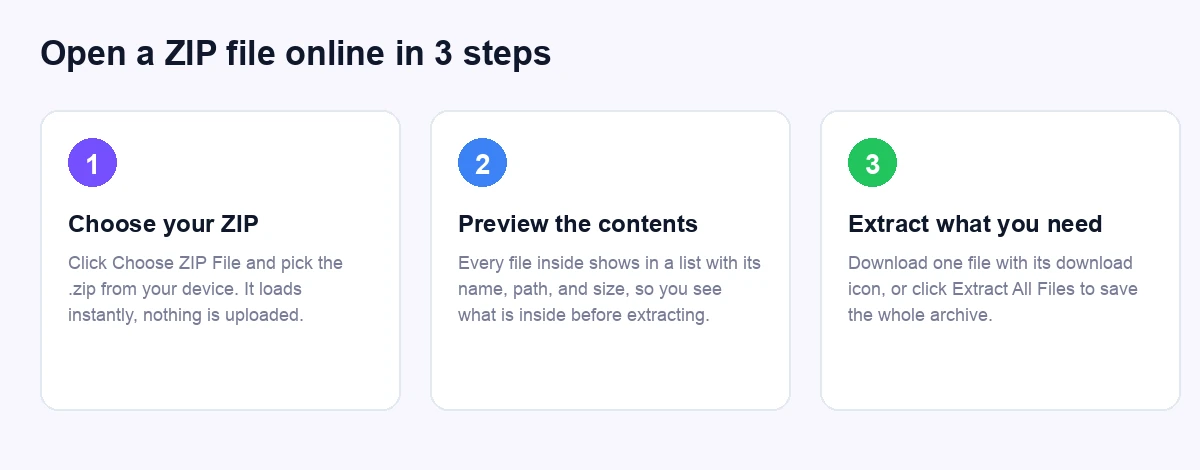
No email, no signup, no watermark. Because Pixellize reads the ZIP in your browser, a 200 MB archive opens as fast as your disk can read it, with no upload bar to wait on.
Opening a ZIP file online is safe when the tool runs inside your browser instead of on a server. Pixellize reads the archive straight from your disk and never uploads it, so private documents stay on your device. That is what makes it fine for contracts, tax files, and client work.
Here is the thing: not every “online” tool is built this way. Plenty of sites upload your archive to their server, unzip it there, and hope you trust their deletion policy. Before you use one, check the wording. Phrases like “processed in your browser” or “no upload” are the ones you want. If a tool asks you to wait while it uploads, your file left your device.
This is where a browser tool quietly beats double-clicking. When Windows or Mac extracts a ZIP, it usually dumps every file into a folder. If you needed one PDF out of a 60-file bundle, you now have 60 files to clean up.
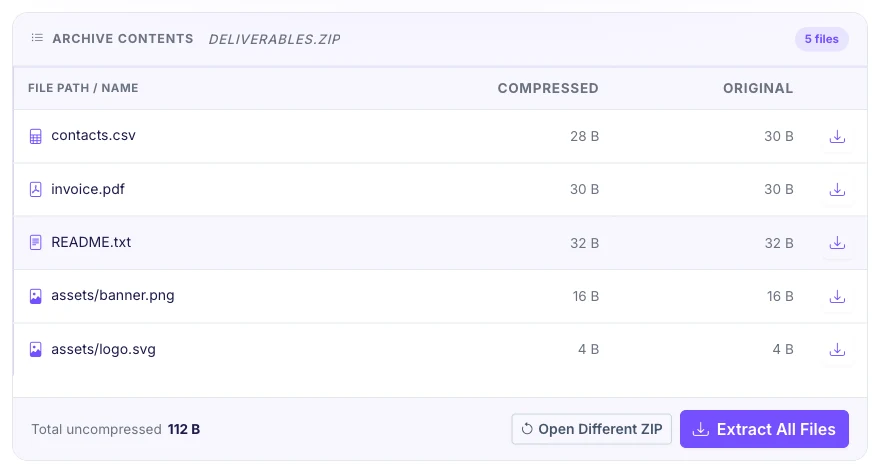
Pixellize lists each entry with its own download button, so you pull out only the invoice, the one photo, or the single spreadsheet you actually wanted. Need the whole thing? Extract All Files saves every entry with its original name, ready to use. It is the same result 7-Zip gives, without the install.
Phones are where ZIP files trip people up most. iPhone Files can open a simple ZIP by tapping it, and recent Android builds show a “Extract” option in the Files app, but both stumble on nested folders or when you only want one file out of many.
A browser tool works the same on a phone as on a laptop. Open the Pixellize unzip tool in Chrome or Safari, tap Choose ZIP File, pick the archive from your downloads, and tap the download icon on the file you need. No App Store trip, no permissions to grant, and nothing leaves the phone.
A password-protected ZIP can be opened online only if you know the password and the tool supports encrypted archives. Many in-browser tools, Pixellize included, open standard ZIPs but not password-locked ones, because AES encryption needs the key. If you have the password, a desktop app like 7-Zip will prompt for it and open the archive.
If you do not have the password, there is no honest shortcut. Strong ZIP encryption has no back door, which is exactly what makes it worth using. Ask whoever sent the file to share the password through a separate channel, like a text message.
ZIP is the most common archive, but you will run into RAR and 7Z too, usually from software downloads or files shared by Windows power users. A ZIP-only tool will not open those directly. The simplest fix is to convert first: the RAR to ZIP converter turns a .rar into a standard .zip you can then open anywhere.
Working the other direction? Pixellize also has a create ZIP file tool to bundle files into one archive, and a PDF to ZIP tool for packaging documents. All of them run in the browser with the same no-upload approach.
If the archive still refuses to open, run through these before assuming the file is dead. Most “cannot open ZIP” errors come down to one of these four.
Keep in mind that a truly corrupt archive, one that lost bytes in transfer, cannot always be recovered. When the preview in Pixellize shows garbled names or zero-byte entries, the source file is the problem, not the tool.
You do not need to install anything to open a ZIP file online. Pick the archive, preview what is inside, and save the one file or the whole bundle, all in a browser tab that keeps your files on your own device. It works on a locked-down office laptop, a Chromebook, and a phone the same way.
Next time a ZIP lands in your inbox, skip the software hunt. Open the free Pixellize unzip tool, drop the file in, and grab what you need. That is the whole job done, privately, in seconds.
Open the free Pixellize unzip tool, click Choose ZIP File, and pick the archive from your device. It lists every file inside instantly. Click the download icon next to one file to save just that file, or click Extract All Files for the whole archive. There is no signup and nothing to install.
Yes. A browser-based tool opens a ZIP without any install, which is why it works on locked-down work laptops, Chromebooks, and phones. You pick the file, preview what is inside, and download what you need, all in the browser tab. Built-in extractors on Windows and Mac also work, but only on your own machine.
It is safe when the tool processes the file in your browser instead of on a server. Pixellize reads the ZIP directly from your disk and never uploads it, so private documents stay on your device. Before using any online tool, look for wording like "no upload" or "processed in your browser."
Open the Pixellize unzip tool in Chrome or Safari, tap Choose ZIP File, and pick the archive from your downloads. Tap the download icon on the file you want. This works on both Android and iPhone without an app, and it handles nested folders better than the built-in Files apps.
Only if you know the password and the tool supports encrypted archives. Many in-browser tools, including Pixellize, open standard ZIPs but not password-locked ones. If you have the password, a desktop app like 7-Zip will prompt for it. If you do not have it, there is no legitimate way to bypass strong ZIP encryption.
Usually the download is incomplete, the file is not really a ZIP, or your extractor is blocked. Re-download it over a stable connection, confirm the name ends in .zip, and try a browser tool like Pixellize if the built-in one fails. A file named .zip that is actually a RAR needs converting first.

Founder and CEO of Pixellize.io, building AI-powered web tools and digital products with a focus on user experience and automation. M.Sc. Zoology, working at the intersection of technology, data analytics, and life sciences.