
Compress PDF to an Exact Size
Type the size you need in KB and get a PDF that matches it, with text kept sharp. Everything runs in your browser, your file never leaves your device.
How to Compress a PDF to a Specific Size
Upload Your PDF
Drag and drop or choose any PDF file from your device. Pages preview instantly on the left.
Set the Target Size in KB
A recommended size is filled in for you. Keep it, or type the exact size you need, like 100 KB for a portal upload limit or 500 KB for email.
Click Compress PDF
The tool tries the gentlest method first and only compresses as much as your target requires, keeping text as sharp as possible.
Download the Result
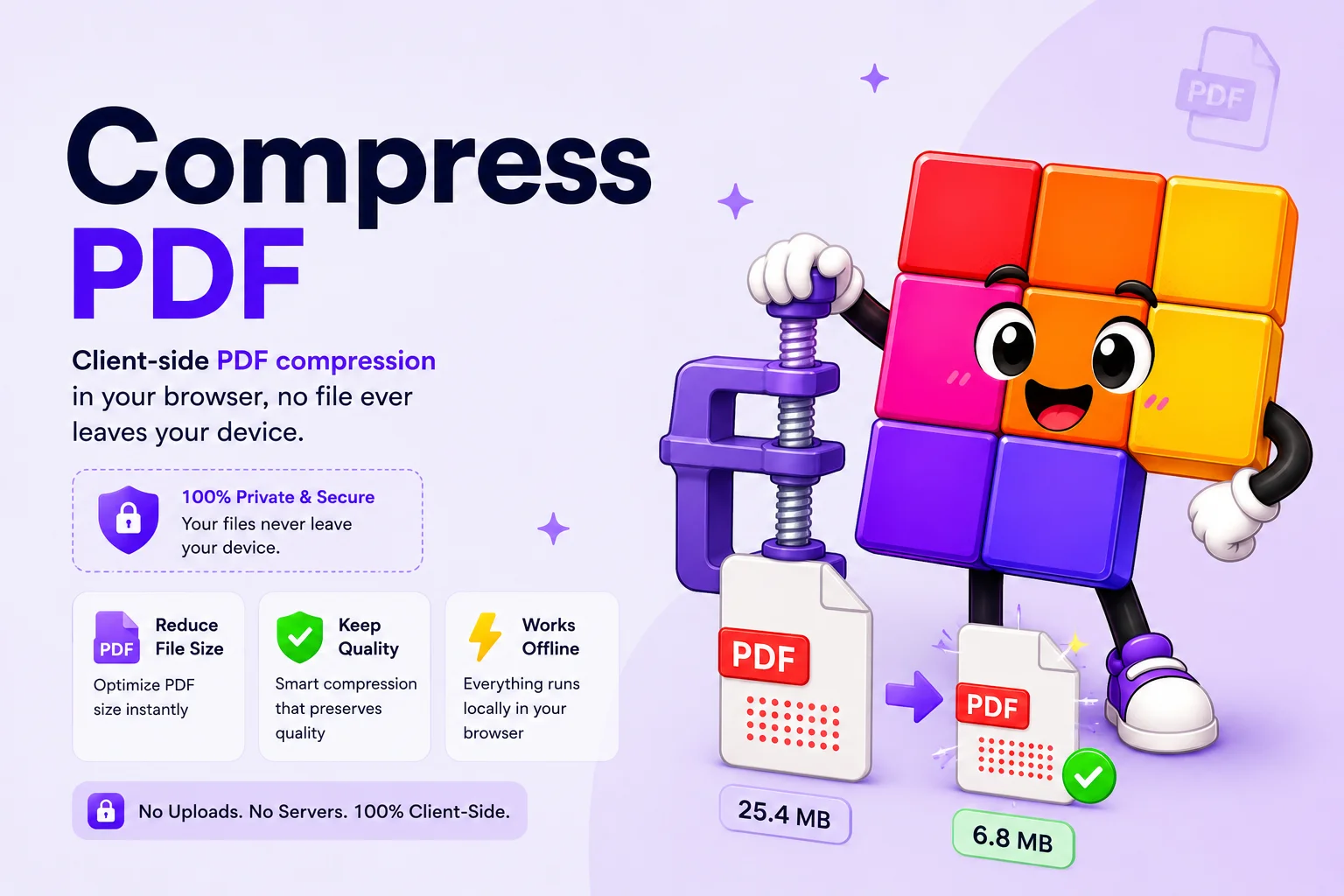
You see the before and after sizes with the reduction percentage. The Download button gives you a PDF at or just under your target.
Hit Any Upload Limit Without Blurry Text
Most PDF compressors give you three vague presets and hope for the best. This one works backwards from the number that actually matters: the size limit you are trying to hit. Government portals often cap uploads at 100 KB or 200 KB, job sites at 500 KB, and email attachments around 10 MB. Type that number, click Compress PDF, and the download matches it.
The compressor also protects your text. It first tries to shrink only the images inside the PDF, so headings and paragraphs stay as real, selectable text. Scanned documents get a high-resolution black-and-white treatment that keeps letters crisp, and colored pages keep text on a separate sharp layer while the background compresses hard. Page dimensions never drop below 60 percent of the original, so the result stays readable.
On top of that, every compressed file gets a free cleanup: author and creator metadata, XMP data, embedded thumbnails, duplicate images, and unused objects are removed. Nothing is uploaded anywhere, the entire process runs in your browser.
Why Use This PDF Compressor?
Exact Target Size
Type 100 KB and you get a PDF at or just under 100 KB. The compressor adjusts quality automatically instead of making you guess with presets.
Text Stays Sharp
Text is protected at every step. Real text is kept as text where possible, and scanned pages use a high-resolution text layer instead of a blurry JPEG.
100% Private
Your PDF never leaves your device. Reading, compressing, and rebuilding all happen in your browser, no server, no upload, no data stored.
Four Compression Methods
Image optimization, sharp black-and-white encoding, layered text separation, and page rendering. The tool picks the gentlest one that reaches your size.
Metadata Cleanup
Author, creator, dates, XMP data, embedded thumbnails, duplicate images, and unused objects are stripped out, free size savings with zero quality loss.
Never Worse Than the Original
If your PDF is already smaller than the target, you get the original back untouched. The output is never larger than the file you uploaded.
Similar Tools
More PDF tools you might find useful.
Frequently Asked Questions
Common questions about our PDF compressor
How do I compress a PDF to 100 KB?
Upload your PDF, replace the recommended value with 100 in the Target Size field, and click Compress PDF. The tool adjusts quality automatically so the download lands at or just under 100 KB. If 100 KB is physically impossible for your file, you get the smallest achievable size and a note saying so.
Will the text stay clear after compression?
Yes, keeping text clear is the whole design. The compressor first shrinks only the images inside your PDF so text stays untouched. Scanned and text-heavy documents are encoded as high-resolution black-and-white, which keeps letter edges sharp instead of turning them into JPEG mush. Colored pages keep text on a separate sharp layer.
Will text still be selectable after compression?
In most cases, yes. When the image-optimization method reaches your target, the PDF structure is preserved and text remains selectable and searchable. Very small targets may require converting pages to images, in which case the result note tells you what happened.
How does the PDF compression work?
Four methods run in order, gentlest first. Embedded images are downscaled and re-encoded while text stays as text. Text documents can be converted to sharp high-resolution black-and-white. Colored pages can split text onto a separate crisp layer over a compressed background. Only as a last resort are pages rendered as images, never below 60 percent of the original page width.
Is my PDF uploaded to a server?
No. Reading, compressing, and rebuilding the PDF all happen locally in your browser. Your file never leaves your device, which also means there is nothing to delete afterwards and no file size surprises from a server queue.
What gets removed from the PDF besides image data?
The compressor strips metadata such as author, creator, producer, and creation dates, plus XMP data, embedded page thumbnails, file attachments, comment annotations, duplicate images, and unused objects. Links and form fields are kept. These removals shrink the file without touching visible quality.