
How to Create an Image Sitemap (Step by Step)
Learn how to create an image sitemap, write the XML, and submit it in Google Search Console so Google finds and indexes…
Read articleHow to find broken images on a website, free: scan one page or a whole site for 404 images, read the status codes, and fix each one.

You open your own site, scroll a page you wrote months ago, and there it is: a gray box with a torn-picture icon where a photo used to be. Visitors saw it before you did. Knowing how to find broken images on a website, before a customer or Google does, takes about a minute with the right check. A broken image is one the browser cannot load, so it shows a placeholder instead of the picture. This guide shows how to find them on any site with a free online checker in three steps, compares the top 5 tools for the job, and walks through how to fix each cause and stop them coming back. We start with the free Pixellize broken image checker.
| Scan mode | Best for | Speed |
|---|---|---|
| Single page | Checking one landing page before a launch or campaign | Seconds |
| Whole site (up to 100 pages) | A full cleanup, or an audit after a migration or redesign | Minutes |
| Export (CSV or JSON) | Handing the broken list to a developer or a ticket | Instant |
A broken image is a picture the browser requests but cannot load, so it shows a placeholder icon or empty box instead. It happens when the file behind the image tag returns an error, usually a 404 Not Found, as defined in the MDN reference for HTTP 404 (retrieved October 2026). The image tag is still in the page, but the file it points to is gone or unreachable.
You have seen the result: the little torn-photo icon, or just a blank gap where a logo, product shot, or chart should be. The tricky part is that a broken image almost never announces itself in your dashboard. The page still loads, the text is fine, and nothing errors out for you as the owner, so these sit live for weeks until a visitor notices. That is exactly why an automated check beats eyeballing pages one at a time.
Broken images hurt in two ways at once: they push visitors away and they cost you image search traffic. A missing product photo or hero shot makes a page look abandoned, which pushes people to leave faster and can cost a sale outright. For search, Google notes in its Google Images documentation (retrieved October 2026) that images it cannot access will not appear in Image Search, so a broken image is one that cannot rank or send traffic.
There is a quieter cost too. Every time a crawler requests a dead image file, that is a wasted request against your site. On a small blog it barely matters. On a store with thousands of product images, a pile of 404s is wasted crawl budget that could have gone to real pages. The first time I scanned an old site of mine I expected two or three dead images and found eleven, most from a theme change that had quietly renamed a folder.
The fastest way to find broken images on a website is an online checker you run in the browser, with nothing to install. The free Pixellize broken image checker scans a single page or a whole site, HEAD-checks every image, and lists the broken ones with their status code. Here is the whole flow in three steps.
Open the Pixellize broken image checker and paste the address you want to check, a single page or your homepage. No account, no download.
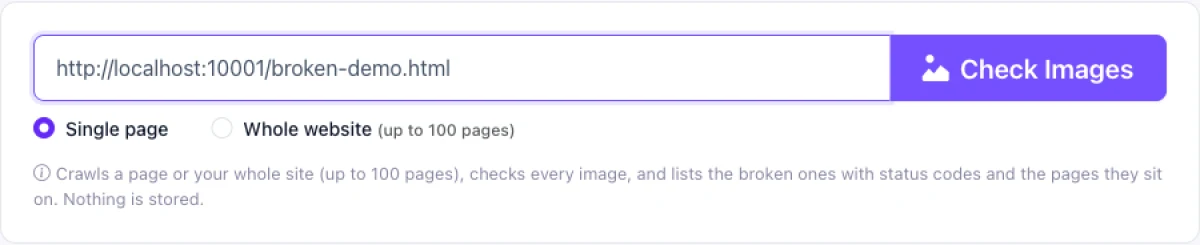
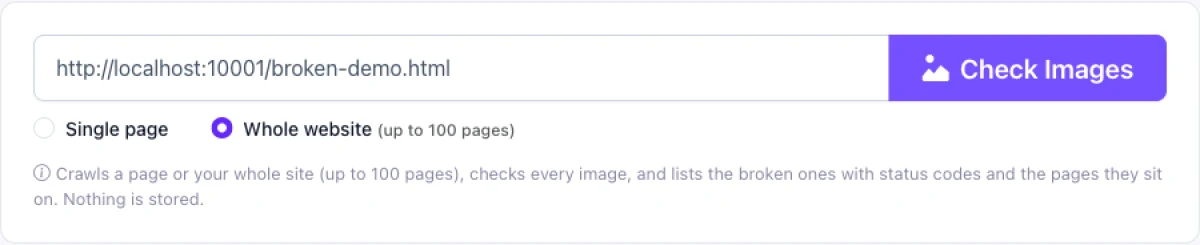
Pick Single page to check one URL in seconds, or Whole website to crawl internal links and check every image across up to 100 pages. Single page is right before a campaign, whole site for a full cleanup.
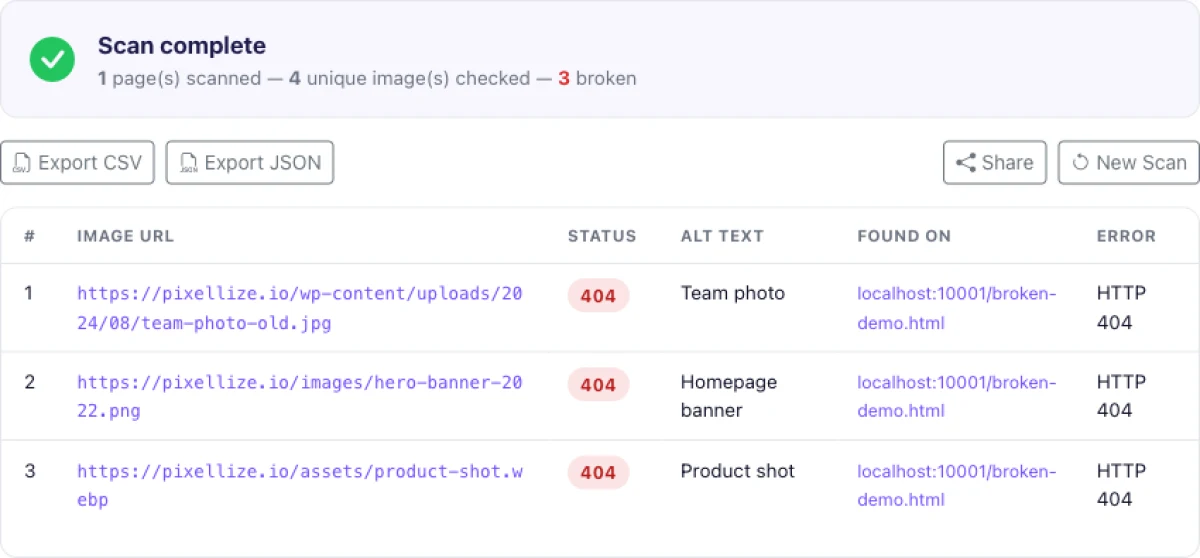
Click Check Images and the report lists every broken image with its URL, the HTTP status code (usually 404), its alt text, and the page it sits on. In a test run on a sample page with four images, it flagged three broken at 404 and left the one working image off the list, in about ten seconds. Export the results as CSV or JSON and work down the list.
Paste a URL into the free Pixellize broken image checker and get a clean list of 404 images, with status codes and the pages they sit on.
Open the Broken Image CheckerSeveral tools find broken images on a website, from a quick free scanner to full SEO suites. Here are the top 5, starting with the free option I reach for first, then four established names you already know. Quick overview first, then the detail on each.
How I picked these five: each is an established tool with a real track record, each actually detects broken images (several checkers only do links), and each runs online or has a free tier you can try without a card. One-off scanners with no name behind them were left out. The order is not a strict ranking, Pixellize is first because it is the free, no-sign-up option most readers are looking for.
| Tool | Best for | Price |
|---|---|---|
| 1. Pixellize | A fast, free scan of one page or a whole site | Free, no sign-up |
| 2. Ahrefs | Broken images inside a deep technical SEO audit | Paid suite |
| 3. Semrush | Broken images inside a full site audit | Paid suite |
| 4. Sitechecker | Ongoing site monitoring with alerts | Free trial, then paid |
| 5. Dr. Link Check | A dedicated online broken link and image scan | Free tier, then paid |
Best for: a free, instant scan of a single page or a whole site. Price: free, no sign-up.
Pixellize leads the list because it does the one job well and asks for nothing in return. Paste a URL, pick single page or a whole-site crawl, and it lists every broken image with its status code, alt text, and the page it sits on, then exports to CSV or JSON. The three steps above walk through it. If all you need is to find and fix broken images without buying an SEO suite, start here.
Key features:
Pros: free, fast, dedicated to images, no account. Cons: a single site scan caps at 100 pages, so very large sites need more than one run.
What sets it apart: the only free tool here that hands you the status code, alt text, and source page in one export, with no sign-up. Open the Pixellize broken image checker.
Best for: finding broken images as part of a deep technical SEO audit. Price: paid, part of the Ahrefs suite.
Ahrefs is one of the best-known SEO platforms, and its Site Audit crawls your whole site and flags broken images alongside a hundred other issues. It is overkill if an image check is all you want, but hard to beat if you need the full technical picture in one place.
Key features:
Pros: industry-standard depth, scheduled monitoring. Cons: paid, and broken images are a tiny part of a large, pricier tool.
What sets it apart: broken images sit inside a complete technical audit, not a standalone check.
Best for: teams already in Semrush who want broken images flagged in a wider audit. Price: paid, part of the Semrush suite.
Semrush is another household SEO name, and its Site Audit reports broken internal images and resources as part of a health score. Like Ahrefs, you are buying a whole platform, so it makes sense when image checks are one line item in a bigger SEO workflow.
Key features:
Pros: trusted name, deep reporting, recurring scans. Cons: paid subscription, more than most people need for images alone.
What sets it apart: the site health score tracks whether your broken images go up or down over time.
Best for: ongoing monitoring with alerts when something breaks. Price: free trial, then paid.
Sitechecker is a well-established online SEO auditing tool that crawls your site, reports broken images and links, and can monitor pages on a schedule. It sits between a one-off scanner and a full suite, which suits a site you want to keep an eye on rather than check once.
Key features:
Pros: good for recurring checks, clear reports. Cons: the free trial is limited, then it is a paid plan.
What sets it apart: monitoring and alerts, so you hear about a new broken image instead of finding it by accident.
Best for: a dedicated online scan of broken links and images together. Price: free tier, then paid.
Dr. Link Check is an established online checker that crawls a site and reports broken links and broken images with their status codes. It is closer to Pixellize in spirit, a focused checker rather than a full suite, with a free tier for smaller scans and paid plans for scale.
Key features:
Pros: focused and online, covers links and images together. Cons: the free tier limits crawl size, bigger sites need a paid plan.
What sets it apart: one scan covers both broken links and broken images, handy for a combined cleanup.
Which should you choose? For a quick, free check with nothing to install, use Pixellize. If you already pay for Ahrefs or Semrush, let their site audit catch images alongside everything else. Pick Sitechecker when you want ongoing monitoring with alerts, and Dr. Link Check when you want broken links and images in one scan.
Prefer no tool at all for a one-off? Your browser’s built-in DevTools work for the page you are on: open the Console and look for red 404 image errors.
Almost every broken image comes down to the file no longer being where the page expects it. The common causes:
http:// on an https:// page gets blocked by the browser, so it never renders.Once the checker hands you the URL and the page, the fix follows the cause. Work through the list one row at a time.
src to the real file, matching the exact spelling, case, and extension.http:// to https://, or re-upload it so it serves from your secure domain.After each fix, rescan the page so you are confirming it with the status code, rather than a quick glance. A cached broken image can still look broken in your browser for a few minutes after the file is back.
You stop broken images by scanning on a schedule and being careful at the three moments they appear. A monthly run of the Pixellize broken image checker catches new ones before visitors do. The three risky moments are a theme or template change, a media-library cleanup, and a site migration, so rescan right after each of those.
A few habits help the most. Host your own images instead of hotlinking, so another site’s cleanup cannot break yours. Keep URLs relative or fully on HTTPS to avoid mixed content. And write real alt text on every image, which will not stop a file going missing, but makes the gap meaningful to screen readers and gives you a label in the report. Pair the image scan with a broken-link pass in the same sitting, since the same events that kill images, migrations and cleanups, kill links too. On WordPress specifically, see how to find broken images in WordPress, or run a wider site audit for broken links and image issues.
Broken images are rarely the only thing a migration or cleanup leaves behind. These four free Pixellize tools handle the rest of the same job, no sign-up on any of them.
Finding broken images on a website comes down to one habit: scan, do not guess. Paste your URL into the free Pixellize broken image checker for a full list, switch to whole-site mode when you need the entire site, and reach for DevTools for a quick one-off on the page you are reading. Fix each one by its cause, rescan to confirm, and run a quick check after every theme change or migration. That is how to find broken images on a website, start to finish. While you are cleaning house, run the same pass for broken links on your website so both are handled in one go.
Paste your URL into a free online broken image checker, pick single page or whole site, and run it. The tool crawls the page, checks every image, and lists the broken ones with their status code and the page they sit on, in under a minute, with nothing to install.
An image fails to show when the file it points to is gone or unreachable, usually a 404. The common reasons are a deleted or moved file, a wrong path or filename, a dead hotlink from another site, or an HTTP image blocked on an HTTPS page.
Use the whole-site mode of an online checker, which follows internal links and checks every image it finds, or a desktop crawler like Screaming Frog for very large sites. Both return a list of broken image URLs with response codes you can export and fix.
Yes, in two ways. They push visitors away, which weakens engagement signals, and an image Google cannot load will not appear in Image Search. On large sites, many dead image files also waste crawl budget that should go to real pages.
Match the fix to the cause. Re-upload a deleted file, correct a wrong path or filename, host your own copy instead of a dead hotlink, or switch an HTTP image to HTTPS. If the original is gone for good, replace it with a new image, then rescan to confirm.
Yes. A free online checker needs no install, and your browser has built-in tools: open DevTools, check the Console for red 404 errors, or filter the Network tab by images to spot failed requests on the page you are viewing.
Founder and CEO of Pixellize.io, building AI-powered web tools and digital products with a focus on user experience and automation. M.Sc. Zoology, working at the intersection of technology, data analytics, and life sciences.