
Images to PDF
Free Image to PDF converter that runs entirely in your browser. Merge JPG, PNG, WebP, HEIC, BMP, GIF, and TIFF into one PDF. Drag pages to reorder, choose page size and margins, download in one click. No signup, no watermark, no upload to a server.
How to Convert Images to PDF
Upload Your Images
Drag and drop or choose multiple JPG, PNG, or WebP images.
Arrange and Customize
Drag the thumbnails to set the order and pick page size.
Generate & Download
Click Generate and download the combined PDF instantly.
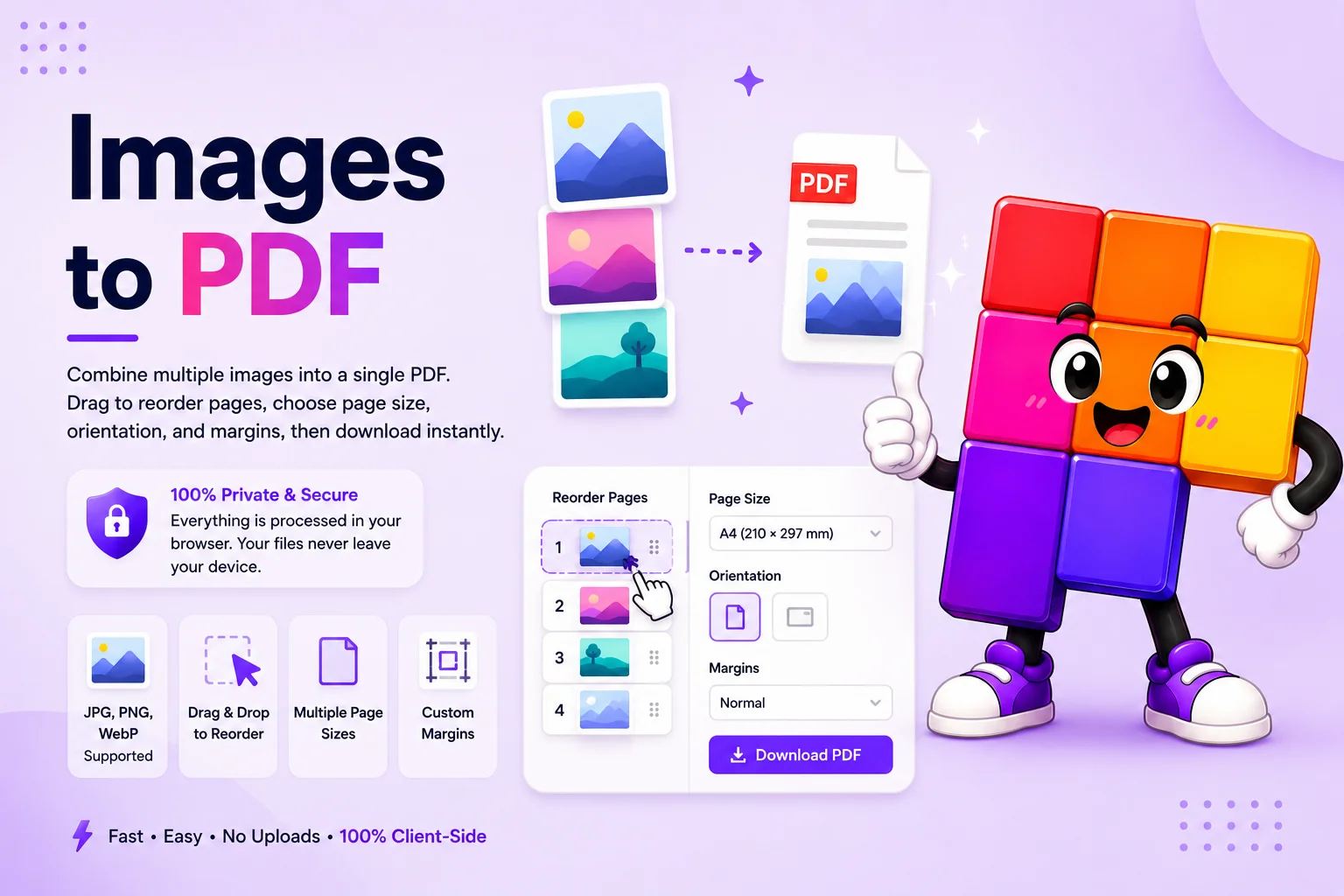
How the Image to PDF converter merges photos into a single PDF in your browser
An Image to PDF converter combines one or more image files (JPG, PNG, WebP, HEIC, BMP, GIF, TIFF) into a single PDF document. The Pixellize tool does this entirely in your browser with no upload to a server, no signup, and no watermark on the output PDF.
Drop your images, optionally reorder pages and choose page size, orientation, and margins, then click Convert. The output is a standard PDF that opens in every reader and works for assignments, receipts, contracts, or any time you need a multi-page document from photos. Supports HEIC (iPhone), WebP, and the usual JPG/PNG/BMP/GIF/TIFF formats. Everything stays on your device, no upload, no watermark.
Why this Image to PDF converter works better
Multi-image upload, batch ready
Drop dozens of JPG, PNG, WebP, HEIC, BMP, GIF, and TIFF files at once. Each image becomes one PDF page. No file count cap, no daily limit.
Drag to reorder PDF pages
Rearrange page order before exporting. Drag thumbnails around to set the final sequence. The PDF respects whatever order you set.
Page size, orientation, and margins
A4, Letter, A3, A5, or auto-fit. Portrait or landscape. None, small, medium, or large margins. Match the format your school, client, or print shop expects.
HEIC and modern formats supported
iPhone HEIC photos work without a separate conversion step. WebP and AVIF (where browser supports it) also import directly. No need to convert to JPG first.
Optional image compression
Reduce output file size with a quality slider when sharing by email or chat. Keeps the PDF small without visible loss for most photos.
No upload, no signup, no watermark
Everything runs in your browser. The image files never travel to a server. The output PDF has only your images, no Pixellize logo, no watermark, no nag screen.
Similar Tools
More PDF tools you might find useful.
Frequently Asked Questions
Common questions about converting images to PDF.
Are my images uploaded to a server?
No. The Image to PDF converter runs entirely in your browser using JavaScript and the FileReader API. Your image files are read locally, embedded into the PDF locally, and stay on your computer the whole time. Close the tab and nothing is retained.
Which image formats can I convert to PDF?
JPG, JPEG, PNG, WebP, BMP, GIF (first frame), and TIFF in every modern browser. HEIC photos from iPhones work natively in Safari and recent Chrome on Apple devices, and via a conversion step on other browsers. AVIF works in Chrome 85+ and Firefox 93+.
Can I change the page order after uploading?
Yes. After you drop in your images, drag the page thumbnails to set the order before exporting. The output PDF respects whatever order you finalize.
Is the Image to PDF converter free, and is there a watermark?
Yes the converter is 100 percent free with no daily cap, no signup, no email, and no watermark on the output PDF. The downloaded file contains only your images, nothing added.
How do I convert JPG to PDF online for free?
Open this Image to PDF page, drop or select your JPG files, optionally reorder the pages and pick page size and margins, then click Convert. The PDF downloads to your device with all the JPGs as pages, in the order you set, no signup or watermark.
Can I convert HEIC photos from my iPhone to PDF?
Yes. Drop HEIC files directly into the converter. On iPhone Safari and recent Chrome on Mac, HEIC is decoded natively. On Windows and Android browsers without HEIC support, the tool falls back to a conversion step. Either way, you get a single PDF with each photo on its own page.
What does the Compress Images option do?
Compress Images reduces each image quality before it is embedded in the PDF. The output file is significantly smaller (often 40 to 60 percent smaller), which makes it easier to email or upload. Visual quality stays high for most photos. Leave it off for archival scans or print-ready output.
Can I merge multiple images into one PDF?
Yes, that is what this tool is built for. Upload as many images as you need, set the order, and the converter combines them all into one single PDF file with one image per page. There is no limit on the number of images per conversion.