
How to Change a Canonical URL (WordPress, HTML, and More)
A canonical URL tells Google which version of a page is the real one, so when you have duplicates or the wrong…
Read article
Your title tag and meta description are the two pieces of text Google shows in the search result before anyone clicks. Get them right and your click-through rate goes up without changing a single ranking. Get them wrong and you lose traffic you already earned.
This guide covers how to check the title and meta description of any webpage, in five practical methods (from a one-paste tool to a JavaScript console one-liner), plus the six most common mistakes a quick audit catches first.
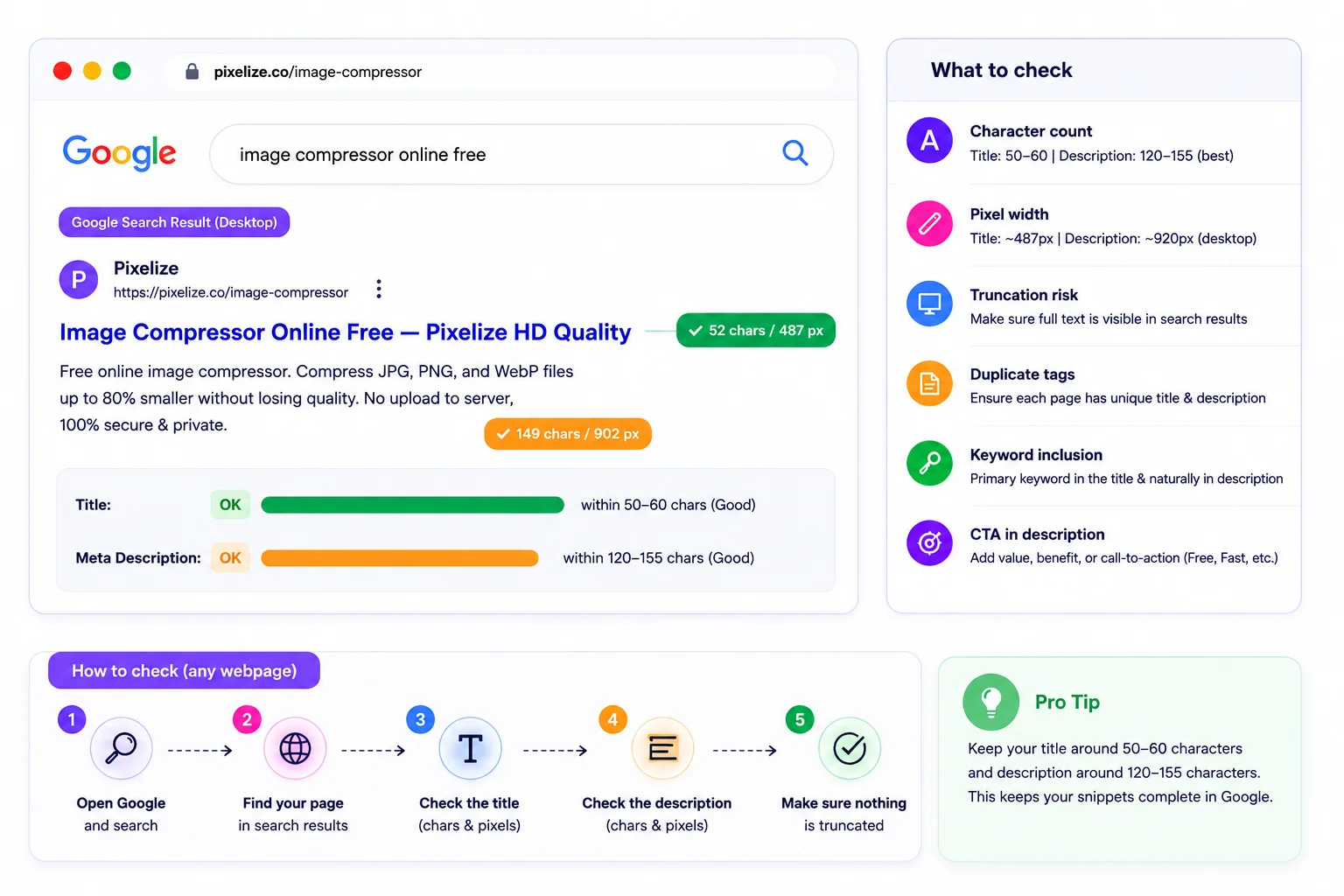
A title tag is the HTML element <title>Your Page Title</title> in the head of every page. Google reads it as the strongest topical signal on the page and shows it as the clickable blue heading in the search result.
A meta description is the HTML element <meta name="description" content="Short summary">. Google does not use it as a direct ranking signal, but it is the gray snippet under the title in search results. A clear description with a call to action lifts click-through rate even when your rank does not move.
Three audiences depend on them. Google uses the title as a topical signal AND as the SERP heading. Social platforms (Twitter/X, LinkedIn, Facebook) fall back to the title and description when og:title or og:description are missing. AI search engines (Google AI Overviews, Perplexity, ChatGPT browsing) parse them to decide which pages to cite.
Google does not measure your title in characters. It measures in pixels. A title full of wide letters like W or M cuts off sooner than a title with narrow letters like i or l. The pixel limits as of 2026:
For descriptions, the safest range is 120 to 158 characters. That covers both mobile and desktop without truncation. The character count is a useful proxy, but any tool worth using also reports pixel width.
Each method has a clear best-fit scenario. A hosted tool wins for one-off audits with a SERP preview; manual methods become useful when you want to verify a result independently or check a site that blocks automated tools.
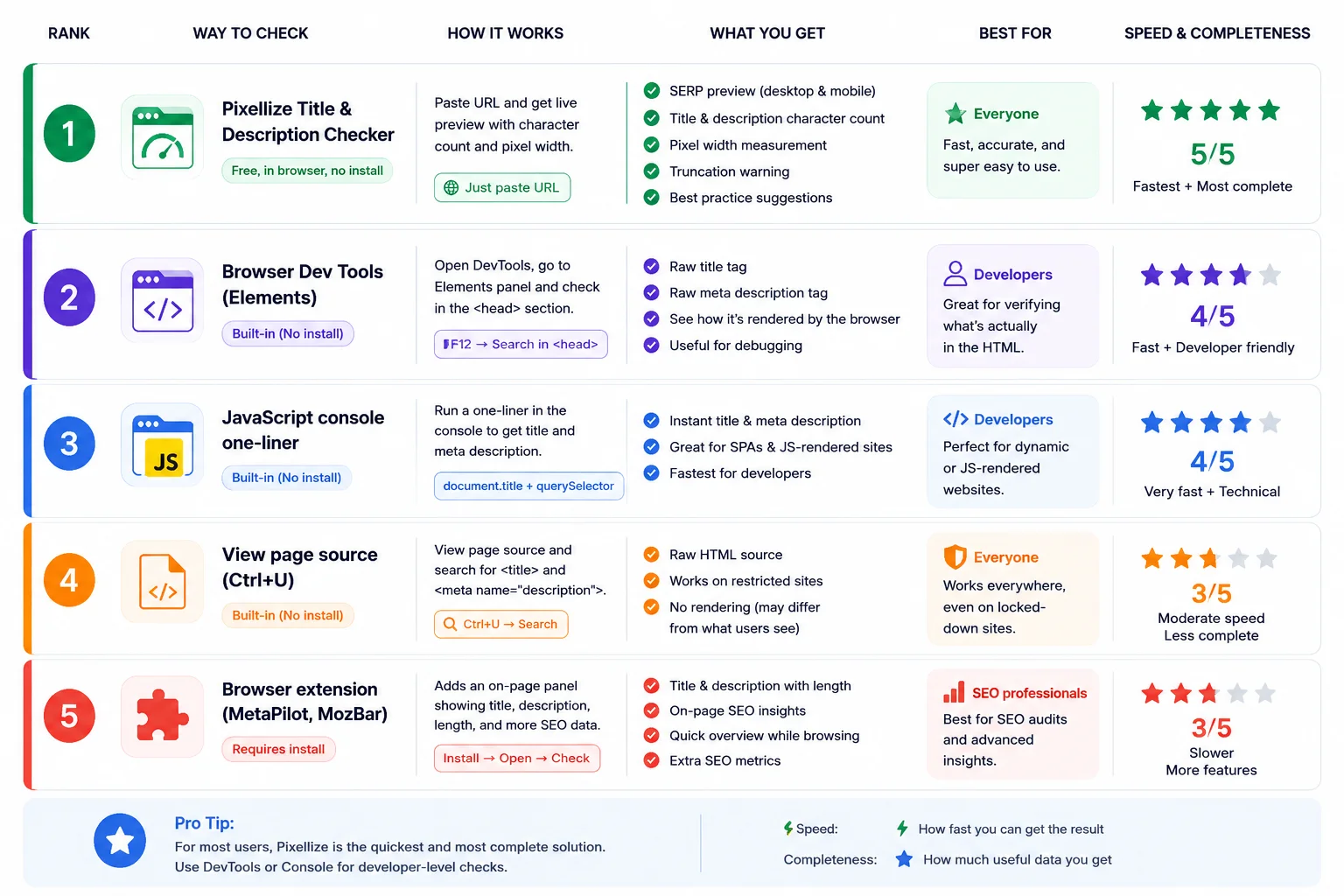
The fastest method is a hosted checker. The Pixellize Title and Meta Description Checker fetches any URL server-side, extracts the title and meta description, measures them in both characters and pixels, and shows a live Google SERP preview for desktop and mobile. The recommendation panel flags anything outside the safe range with a clear color-coded indicator (green within range, orange near the edge, red truncates).
Best for: a one-paste answer when you want measurement plus a visual preview of how the result appears in Google. Limitation: it checks one URL at a time, so a whole-site audit needs multiple runs or a desktop crawler (see method 5).
Open the page in Chrome or Firefox, press F12, switch to Elements (Chrome) or Inspector (Firefox). Press Ctrl+F (Cmd+F on Mac) and search for <title>. The matched element shows you the live title that the page is actually rendering, including any client-side overrides that view source would miss.
For the meta description, search for name="description" in the same Elements view. The content attribute holds the description text.
Best for: trusting your own eyes, or auditing a single-page React app where the title is set dynamically. Limitation: dev tools show the value but not the pixel measurement against Google’s limit.
The developer’s favorite. Open dev tools (F12), switch to the Console tab, paste:
console.log('TITLE:', document.title.length, 'chars:', document.title);
console.log('DESC :', (document.querySelector('meta[name="description"]')?.content || '').length, 'chars:', document.querySelector('meta[name="description"]')?.content);
Two lines, returns the live title and meta description with character counts. The optional chaining (?.) handles pages that have no meta description tag without throwing an error.
Best for: developers running rapid checks during a build. Limitation: gives character count only, not pixel width. Pair with method 1 when pixel measurement matters.
Right-click the page and choose View Page Source, or press Ctrl+U (Cmd+Option+U on Mac). Press Ctrl+F and search for <title> to find the title tag, then search for name="description" for the meta description. This shows the static HTML the server sent, before any JavaScript runs.
Best for: confirming what crawlers without JavaScript rendering see (some search engines and most social previews use the static HTML). Limitation: misses titles set by JavaScript in single-page apps.
Several Chrome and Firefox extensions add a panel showing the title and meta description of any tab you visit, with character and pixel counts. MetaPilot is a free Pixellize-built option that surfaces title, meta description, headings, schema, links, images, and an SEO score in one side panel. MozBar (free) and SEO Minion (free) are popular alternatives that focus more on SEO metrics across the page.
Best for: ongoing audits while browsing any site (your own or a competitor’s) without needing to paste URLs into a separate tool. Limitation: each user needs to install the extension; not useful for sharing results in a client report.
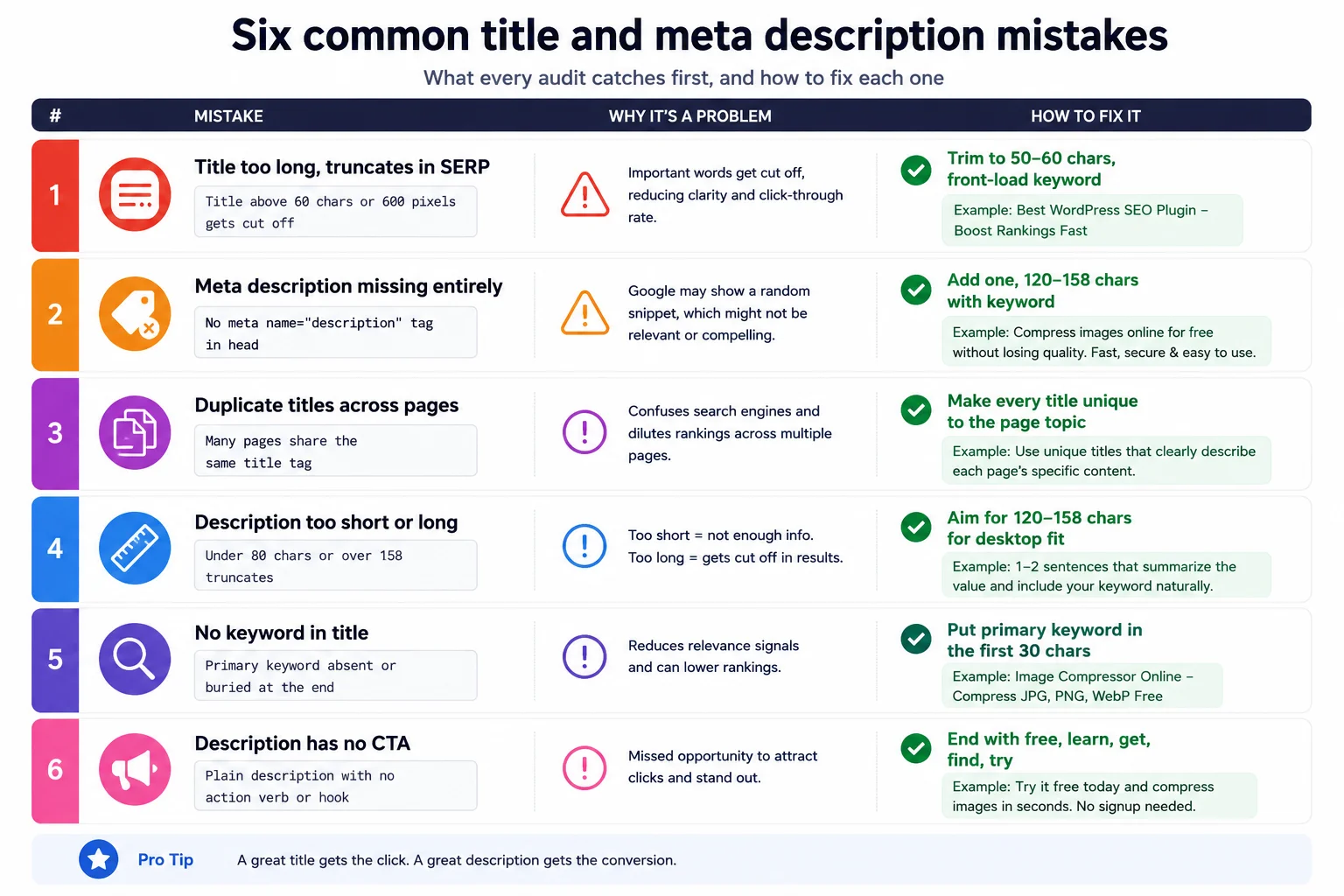
Whatever method you use, the same six issues come up over and over. A good audit catches these first:
The title tag is what shows in the search result. The H1 is what shows at the top of the page when a visitor lands. They are NOT required to match, and on optimized sites they often differ:
When they DO need to match: when Google’s algorithm picks an H2 or H3 from the page over your declared title tag because the title looked like a poor fit. In that case, rewrite the title to be closer to what visitors actually want, often pulling language straight from the H1.
Since 2021, Google rewrites about 60 percent of titles in search results, swapping in text from H1, H2, or anchor text when it judges the original title to be misleading, too long, or stuffed. If you check your title and it is fine, but the SERP shows something different, that is Google’s rewrite.
Three patterns cause rewrites most often. First, titles padded with the site name on every page (“Article Title | Site Name | Category | Section”). Second, titles stuffed with the keyword three or four times. Third, titles that do not match the page content’s actual topic. Trim, simplify, and align with the H1 to reduce rewrites.
AI answer engines read the meta description (and the title tag) as a hint for what the page is about before they decide whether to cite it. A clear, specific, on-topic description increases the chance your page becomes a citation in Google AI Overviews, Perplexity, or ChatGPT browsing answers. A vague or generic description reduces it.
Best practice for AI engine citation: write the description in a way that directly answers a likely user question, including the question’s noun phrases. “Free Broken Link Checker. Scan a page or whole site, find every 404 link, export CSV” is more citable than “The best tool for checking broken links and improving your website”.
One-by-one is fine for a 10-page site. For larger sites three patterns work:
For most cases a hosted title and meta description checker gets you the answer in under five seconds. The manual methods (dev tools, console one-liner, view source, extension) become useful when you want to verify a result independently or audit a site that blocks automated tools. Knowing how to check the title and meta description of any webpage is one of the cheapest SEO skills to acquire and one of the highest-impact to apply consistently. Pair it with related quick wins like running a heading tag structure check on the same page or auditing your canonical URL to catch the full on-page SEO picture.
The fastest method is to paste the URL into a hosted checker like the Pixellize Title and Meta Description Checker, which fetches the page and shows the title, meta description, character count, pixel width, and a live Google SERP preview. For developers, the JavaScript console one-liner document.title + querySelector("meta[name=description]") is even faster.
About 50 to 60 characters, or under 600 pixels in width. Google measures titles in pixels, so wide letters like W and M cut off sooner than narrow letters. Aim for 50 to 55 characters as a safe range that fits on both desktop and mobile.
About 120 to 158 characters. On desktop, Google shows roughly 920 pixels, which equates to about 158 characters. On mobile, the limit is 680 pixels or about 120 characters. The 120 to 158 range covers both without truncation.
Not directly. Google has confirmed it does not use the meta description as a ranking signal. It does affect click-through rate (CTR), which can indirectly affect rankings over time. A clear, specific description with a call to action lifts CTR even when ranking does not change.
Google rewrites about 60 percent of titles in search results since 2021. Common causes: title padded with the site name on every page, keyword stuffed two or three times, or title that does not match the page content. Trim and simplify to reduce rewrites.
No. The title tag targets the search result (can include the brand name and click intent), while the H1 targets the visitor who already landed on the page (can skip the brand and be more conversational). They often differ on optimized sites and that is fine.
Use Screaming Frog SEO Spider for whole-site crawls. The free tier covers up to 500 URLs and reports title, meta description, length, and duplicate flags in a sortable table. For sites over 500 URLs, the paid version handles unlimited URLs.
Meta description is what Google shows in search results. Open Graph description (og:description) is what Facebook, LinkedIn, and other social platforms show in link previews. They can be the same text, but for high-CTR social previews you often want a slightly different OG description tuned for social context.
Yes. Most hosted checkers fetch the page server-side and show both desktop and mobile SERP previews. The Pixellize tool renders both. For viewing the actual mobile-rendered title, use Chrome dev tools device emulation (F12, then click the device-toolbar icon).
Yes. Google AI Overviews, Perplexity, and ChatGPT browsing all parse the title tag and meta description as hints for what the page is about, used in the decision to cite the page. A clear, specific description that answers a question increases the chance of AI citation.

Founder and CEO of Pixellize.io, building AI-powered web tools and digital products with a focus on user experience and automation. M.Sc. Zoology, working at the intersection of technology, data analytics, and life sciences.