
How to Check Image Alt Text (4 Free Ways, 2026)
Learn how to check image alt text free with four methods, from a quick right-click to a full-site scan, plus how to…
Read article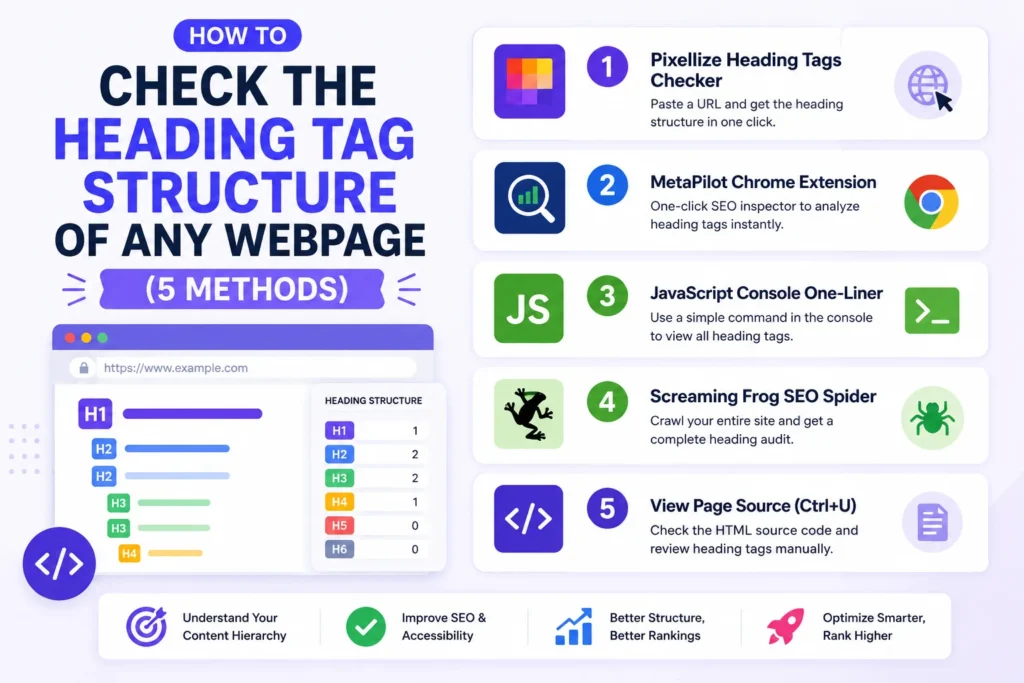
Heading tags are the skeleton of a webpage. Search engines read them to understand topic hierarchy, screen readers use them to navigate, and AI engines like ChatGPT and Google AI Overviews extract them to decide which passages to cite. If the hierarchy is broken, missing, or stuffed, your page leaks ranking signals you should be keeping.
This guide covers how to check the heading tag structure of any webpage, in five practical methods (from a one-paste tool to a JavaScript console one-liner), plus the six most common mistakes a heading audit catches first.
A heading tag is an HTML element (<h1>, <h2>, <h3>, etc.) that defines a section title in your page’s document outline. <h1> is the most important (usually the page title), <h2> labels major sections, <h3> labels subsections, and so on down to <h6>. Together they create the same hierarchy a book uses with chapter and section headings.
Three audiences depend on this hierarchy. Google uses headings as one of the strongest topical signals after the title tag, so a clean H1/H2/H3 outline tells the crawler what the page is actually about. Screen readers (NVDA, JAWS, VoiceOver) let visually impaired users jump between headings to scan a page, which is impossible if the structure is broken. And AI engines, the newer addition to this list, parse H2 and H3 text to extract citable passages for answers in Google AI Overviews, Perplexity, and ChatGPT.
Each method below has a clear best-fit scenario. The fastest method (a hosted tool) wins for one-off audits; the manual methods (dev tools, console snippet, view source) are useful when you want to verify a result yourself or check a site that blocks automated tools.
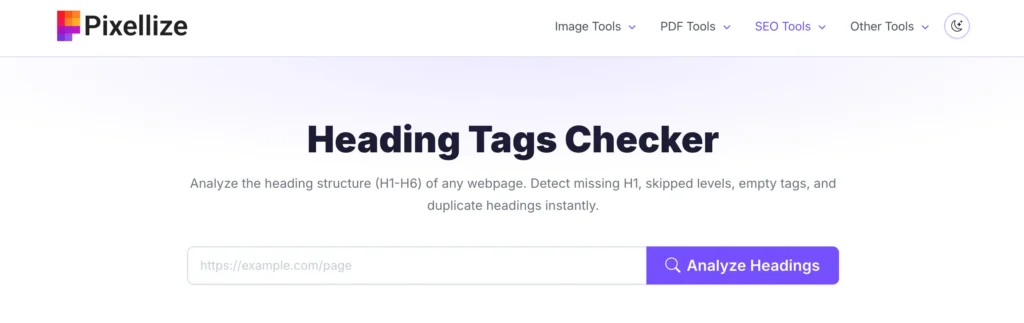
The fastest method is a hosted heading tags checker. The Pixellize Heading Tags Checker takes any URL, fetches the page server-side, parses the HTML for <h1> through <h6> tags, and returns them in a nested tree view that shows the hierarchy at a glance. Each heading is color-coded by level (H1 purple, H2 green, H3 blue), so structural issues like skipped levels or multiple H1s are visually obvious.
If you only need to check the H1, the sibling H1 Checker returns just the H1 text with a status (single H1 OK, missing, multiple). Best for: a quick first audit when you want a full picture of any URL. Limitation: detectors can’t see headings that load client-side via React or Vue after page load unless they execute JavaScript (which most hosted checkers don’t).
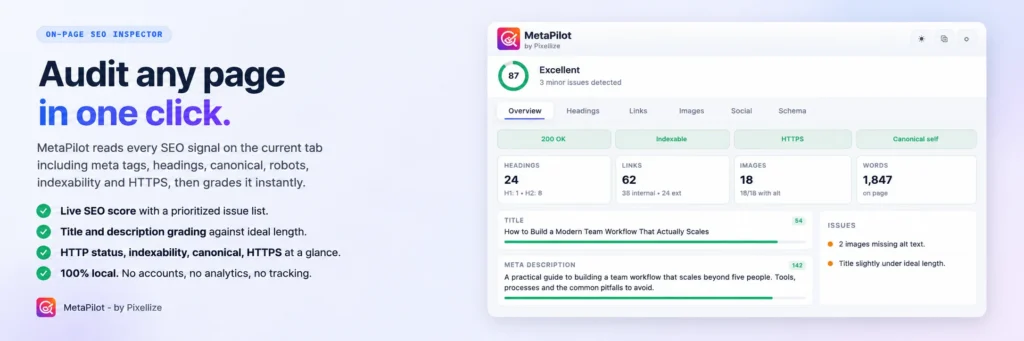
MetaPilot is a free Chrome extension by Pixellize that gives you a complete on-page SEO snapshot of any tab. Install it once, then click the toolbar icon on any webpage and a side panel opens showing the meta tags, headings, schema, links, images, and indexability signals in one view. The heading section lists every H1 to H6 in document order with the actual heading text, so you see the full hierarchy without opening dev tools.
What you get beyond just headings: title and meta description length checks against SEO best practices, canonical URL, robots directives, viewport and hreflang settings, JSON-LD schema validation for Article and BlogPosting and FAQPage types, per-image alt text and file size, and live HTTP status checks on every link with color-coded results for 200, redirects, 404s, and 5xx errors. A single SEO score from 0 to 100 summarizes the page.
Privacy is the headline: everything runs locally in the extension, no data sent to any server, no analytics, no account. Best for: ongoing audits while browsing any site (your own or a competitor’s), without needing to paste URLs into multiple separate tools. Limitation: it’s a Chrome extension, so installation is a one-time setup per browser.
The developer’s favorite. Open dev tools (F12), switch to the Console tab, paste this:
document.querySelectorAll('h1, h2, h3, h4, h5, h6').forEach(h => {
  console.log(h.tagName.padEnd(3), h.textContent.trim().slice(0, 80));
});
The console prints every heading on the page in document order, with its tag name (H1, H2, etc.) and the first 80 characters of its text. Total time: 3 seconds. The output is your full heading outline, ready to copy.
Best for: developers doing rapid checks during a build. Limitation: requires opening dev tools, so it’s not friendly for non-technical site owners.
The other four methods check headings one page at a time. Screaming Frog SEO Spider checks every page on your site at once. Install the free desktop app (Windows, Mac, Linux), paste the root URL, click Start. The crawler walks every internal link and reports the H1 and H2 of each page in a sortable table. Sort by “H1-1 Length” and you instantly see which pages have an empty or missing H1. Filter by “Multiple H1s” and the count appears next to every offending URL.
The free tier covers up to 500 URLs, which fits most small business sites and blogs. Beyond that, the paid license is around $259 per year. Export the heading audit to CSV for client reports or bulk fix lists. Best for: site-wide audits before a redesign, after a migration, or as a quarterly maintenance check. Limitation: it’s a desktop install (no browser-only version), and 500-URL cap on the free tier is restrictive once you have a few hundred posts.
Right-click the page and choose View Page Source, or press Ctrl+U (Cmd+Option+U on Mac). Press Ctrl+F and search for <h1. This finds the first H1 in the STATIC HTML the server sent. Repeat for other levels.
Best for: confirming what the server actually sent (the raw HTML) versus what JavaScript later modified. If a heading appears in dev tools (live DOM) but NOT in view source, it was added by JavaScript, which means search engine crawlers may miss it if they don’t render JS. Limitation: harder to read than the tree view from a hosted checker.
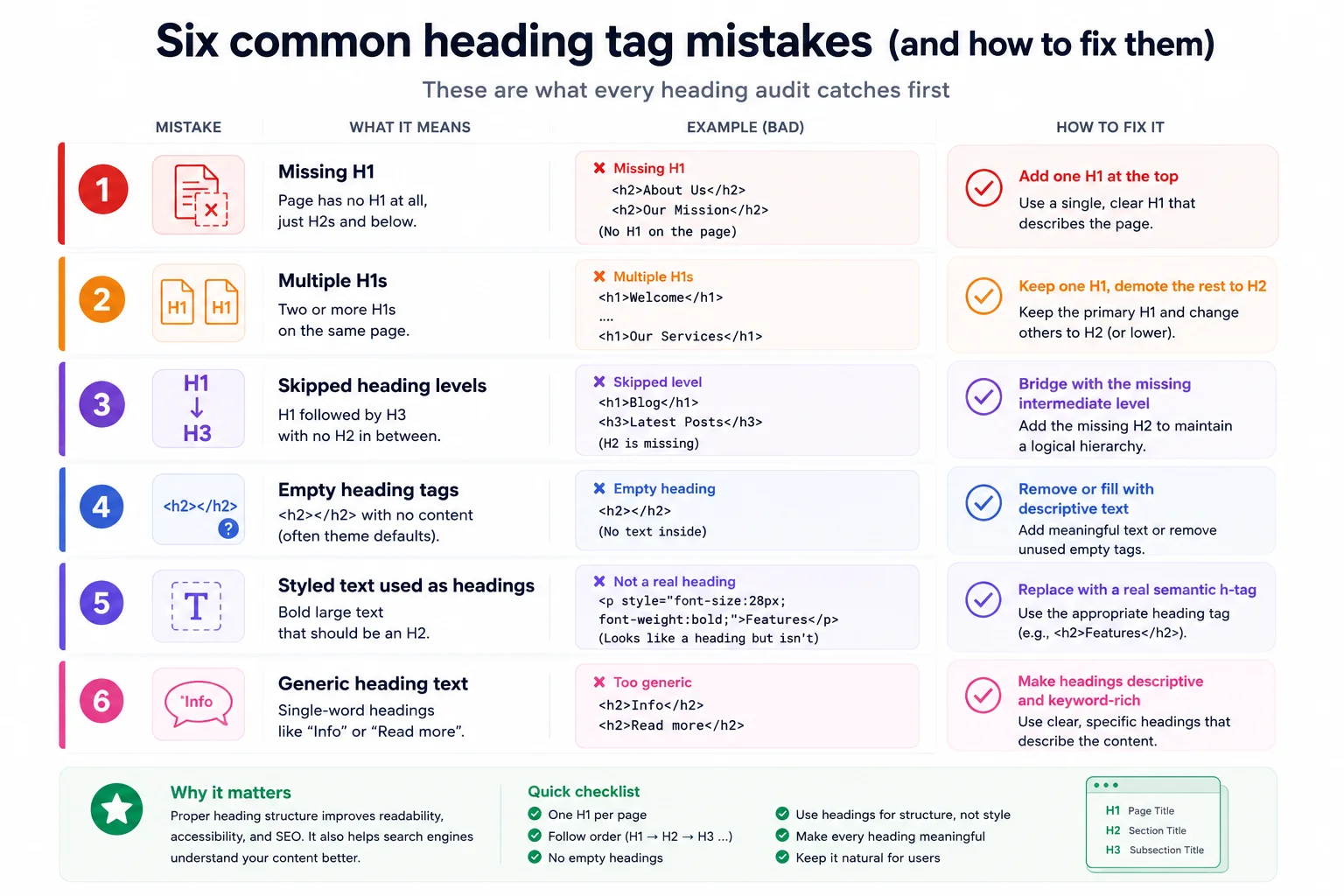
Whatever method you use, the same handful of issues come up over and over. A good audit catches these first:
Headings are weighted more heavily than body text in two ranking systems. For Google, headings are a topical signal: an H2 that exactly matches a search query is a stronger indication that the page covers the query than the same text in a paragraph. For AI answer engines (Google AI Overviews, Perplexity, ChatGPT browsing), headings define the boundaries of citable passages, so a clean H2/H3 structure means more of your content becomes eligible for citation in AI answers.
Concrete example: a post titled “How to compress PDF” with an H2 reading “How to compress PDF on Mac” is more likely to be cited in a Google AI Overview for the “compress PDF mac” query than a post that buries the same advice inside a paragraph. The H2 is the cue.
Most heading issues on WordPress sites trace to one of three sources. First, the theme: many free themes wrap the site logo in an H1 on every page, so every page has TWO H1s (one in the header, one in the post title). Fix by editing the theme’s header.php to use a <p> for the logo, or use a child theme.
Second, the page builder: Elementor, Divi, and Bricks all let users pick any heading level for any text widget. Auditing the page builder elements once and standardizing on H2 for section titles fixes most layout-related heading bugs. Third, the post content itself: writers using the WordPress Block Editor sometimes pick H3 when they mean H2. Run a quick check after publishing and demote/promote levels in the editor as needed.
Shopify themes have similar logo-as-H1 patterns; fix in the theme’s theme.liquid or header.liquid. Webflow lets you pick the tag for any text block directly in the designer; just change the tag picker in the right-hand panel. Squarespace is more restrictive: the heading level options are H1/H2/H3 only, and the site title is automatically wrapped in H1 on every page. The workaround is to use the Heading Tag panel in the page settings to override per-page.
WCAG 2.1 Success Criterion 1.3.1 requires that page structure be programmatically determinable, which translates to a logical heading hierarchy in practice. Screen reader users press the H key to jump between headings; if your page has 50 paragraphs styled as bold text without actual H-tags, those users can’t navigate it.
Two free accessibility tools that audit heading hierarchy alongside SEO: WAVE (by WebAIM) and axe DevTools (by Deque). Both flag missing H1, skipped levels, and empty headings with a specific accessibility severity. Use them when you want the audit framed as accessibility compliance (for a client) rather than SEO (for yourself).
Beyond hierarchy, the content of each heading matters. Six rules cover most cases:
For most cases a hosted heading tags checker gets you the answer in under five seconds. The manual methods (dev tools, console one-liner, view source) become useful when you want to verify the result independently or when you’re auditing a site that blocks automated tools. Knowing how to check the heading tag structure of any webpage is one of those small skills that keeps both SEO and accessibility on track every time you ship a new page. Pair it with related quick wins like running the H1 checker for a single-tag audit, or a full WordPress site audit when you want to catch everything in one pass.
The fastest method is to paste the URL into a hosted heading tags checker that returns the full H1 to H6 outline. The Pixellize Heading Tags Checker does this in one click, free. For developers, the JavaScript console one-liner document.querySelectorAll("h1, h2, h3, h4, h5, h6") is even faster.
Yes, as a best practice. HTML5 technically permits multiple H1s within section elements, but Google and most accessibility guidelines still treat one H1 per page as the standard. The H1 signals the main topic of the page; multiple H1s dilute that signal.
Skipping levels (H1 directly to H3 with no H2) confuses both screen readers and search engine crawlers. Screen reader users navigate by heading level, and a skipped level breaks their ability to scan the page structure. Search engines rely on hierarchy to understand topic relationships within the page.
No. Bold text that visually looks like a heading but is wrapped in a paragraph or strong tag is invisible to assistive technology and to search engine heading-based topic signals. Always use the semantic heading tag (h1 through h6) for actual section titles.
Yes, and arguably more than before. Google still uses headings as a strong topical signal, and AI answer engines (Google AI Overviews, Perplexity, ChatGPT browsing) specifically parse H2 and H3 text to extract citable passages. A clean heading structure increases the chance your content gets cited in AI answers.
Use the browser dev tools Elements tab (F12), which shows the live DOM after JavaScript has run. The JavaScript console one-liner (document.querySelectorAll) also reads the live DOM. View Page Source only shows the static HTML from the server, so JS-injected headings will be missing from view source.
It is the sequence of headings on a page, ordered by depth: H1 is depth 1, H2 is depth 2, H3 is depth 3, and so on down to H6. A correct hierarchy goes H1 then H2 then H3, never jumping levels. Think of it as a book table of contents: chapter, section, subsection.
Yes. HeadingsMap (Chrome/Firefox) and HTML5 Outliner read the live DOM, so they catch every heading including ones loaded by JavaScript. They also flag structural issues like missing H1 or skipped levels in the sidebar.
Aim for under 60-70 characters. Shorter headings scan faster on mobile and read better when search engines or AI engines surface them as snippets. Headings over 80 characters often look like paragraphs that accidentally got marked up as headings.
Yes. The five methods covered here work on any HTML page regardless of CMS or framework. The Pixellize Heading Tags Checker reads any public URL. Browser dev tools and the JavaScript console snippet work on Shopify, Webflow, Squarespace, static sites, and React/Vue apps.

Founder and CEO of Pixellize.io, building AI-powered web tools and digital products with a focus on user experience and automation. M.Sc. Zoology, working at the intersection of technology, data analytics, and life sciences.