
How to Find All Pages on a Website: 7 Proven Methods
You inherit a site with a few hundred pages and no documentation. Where do you even start? Learning how to find all…
Read article
If you have video content on your site, there is a real chance Google is missing most of it. Googlebot is good at finding pages but inconsistent at detecting embedded video players, especially when those embeds load via JavaScript. A video sitemap tells Google explicitly which pages host videos and what each video is about. This guide covers what a video sitemap is, the five XML tags Google requires for every entry, and how to submit a video sitemap to Google Search Console from upload through the Video Indexing Report.
A video sitemap is an XML file that follows the standard Sitemaps Protocol 0.9 with an extra video namespace. For each page on your site that hosts a video, you add a <url> entry containing the page URL plus a nested <video:video> block with metadata: title, description, thumbnail URL, and either the direct video file URL or the embed player URL. Google reads the file when you submit it to Search Console and uses it to discover videos that crawling alone might miss.
You have two options for delivery. You can host a standalone video-sitemap.xml file alongside your regular sitemap, or you can add video tags directly inside an existing sitemap that lists all your pages. Both are accepted. The standalone file is easier to debug and update, so most sites with more than a handful of videos use that.
Three reasons. First, discovery: Googlebot does not always identify embedded video players, especially YouTube iframes loaded by JavaScript or videos behind a click-to-play overlay. A sitemap entry guarantees the video is on Google’s radar. Second, metadata accuracy: you control the title, description, and thumbnail that show in Google Video search instead of leaving Google to guess from the surrounding page text. Third, indexing speed: sitemap-submitted videos typically show up in the Search Console Video Indexing Report within 7 to 14 days, often faster than discovery via normal crawling.
If your videos are core to your traffic (tutorials, product demos, course content, news clips), the sitemap is non-optional. If videos are decorative or supplementary, you can skip it without losing much.
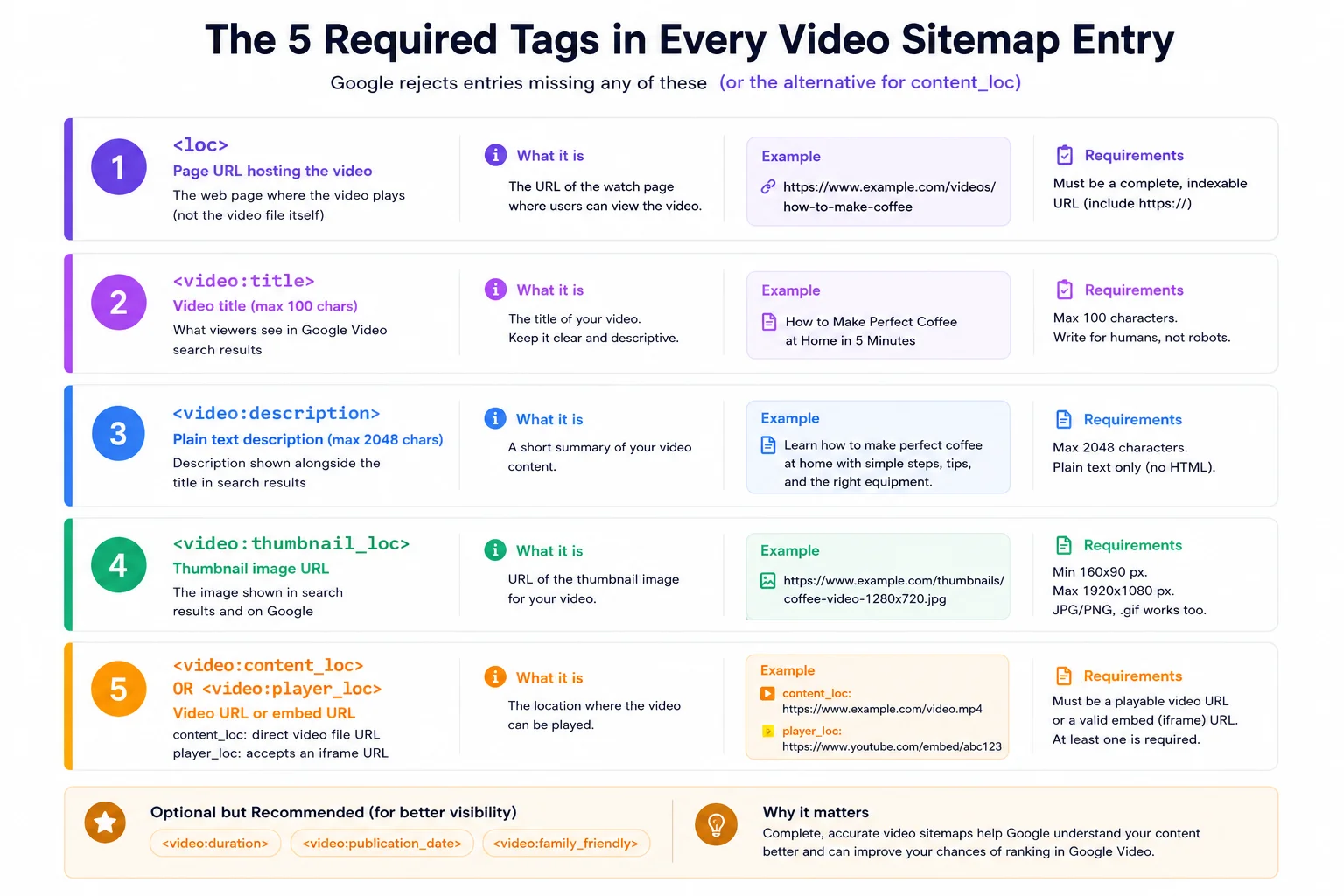
Google’s official video sitemap documentation lists 5 required elements for every entry. Skip any of them and Search Console flags the entry with a “missing required field” error.
<loc> – the page URL that hosts the video, not the video file itself. Example: https://example.com/tutorial-page.<video:title> – the video title, max 100 characters. This is what appears in Google Video search results.<video:description> – plain text description, max 2,048 characters. Shows alongside the title in search results.<video:thumbnail_loc> – URL of the thumbnail image. Minimum 160 x 90 pixels, max 1920 x 1080. JPG, PNG, and GIF accepted.<video:content_loc> OR <video:player_loc> – either the URL of the raw video file (preferred, usually a .mp4) or the URL of the embed player (typically an iframe URL). At least one is required.Optional but recommended tags: <video:duration> (seconds), <video:publication_date> (ISO 8601 date), <video:family_friendly> (yes / no), <video:requires_subscription>, and <video:platform> (restrict to web, mobile, or TV).
Here is a minimal but valid video-sitemap.xml entry. Copy this pattern and adapt the values to your site.
<?xml version="1.0" encoding="UTF-8"?>
<urlset xmlns="http://www.sitemaps.org/schemas/sitemap/0.9"
        xmlns:video="http://www.google.com/schemas/sitemap-video/1.1">
  <url>
    <loc>https://example.com/css-grid-tutorial</loc>
    <video:video>
      <video:thumbnail_loc>https://example.com/thumbs/grid.jpg</video:thumbnail_loc>
      <video:title>CSS Grid Layout in 10 Minutes</video:title>
      <video:description>A complete walkthrough of CSS Grid for beginners, covering rows, columns, gap, and grid-area.</video:description>
      <video:content_loc>https://example.com/videos/grid.mp4</video:content_loc>
      <video:duration>612</video:duration>
      <video:publication_date>2026-04-15T08:30:00+00:00</video:publication_date>
      <video:family_friendly>yes</video:family_friendly>
    </video:video>
  </url>
</urlset>
For multiple videos, repeat the <url> block. One sitemap file can hold up to 50,000 entries or 50 MB uncompressed, whichever comes first. Beyond that, split into multiple sitemaps and reference them from a sitemap index.
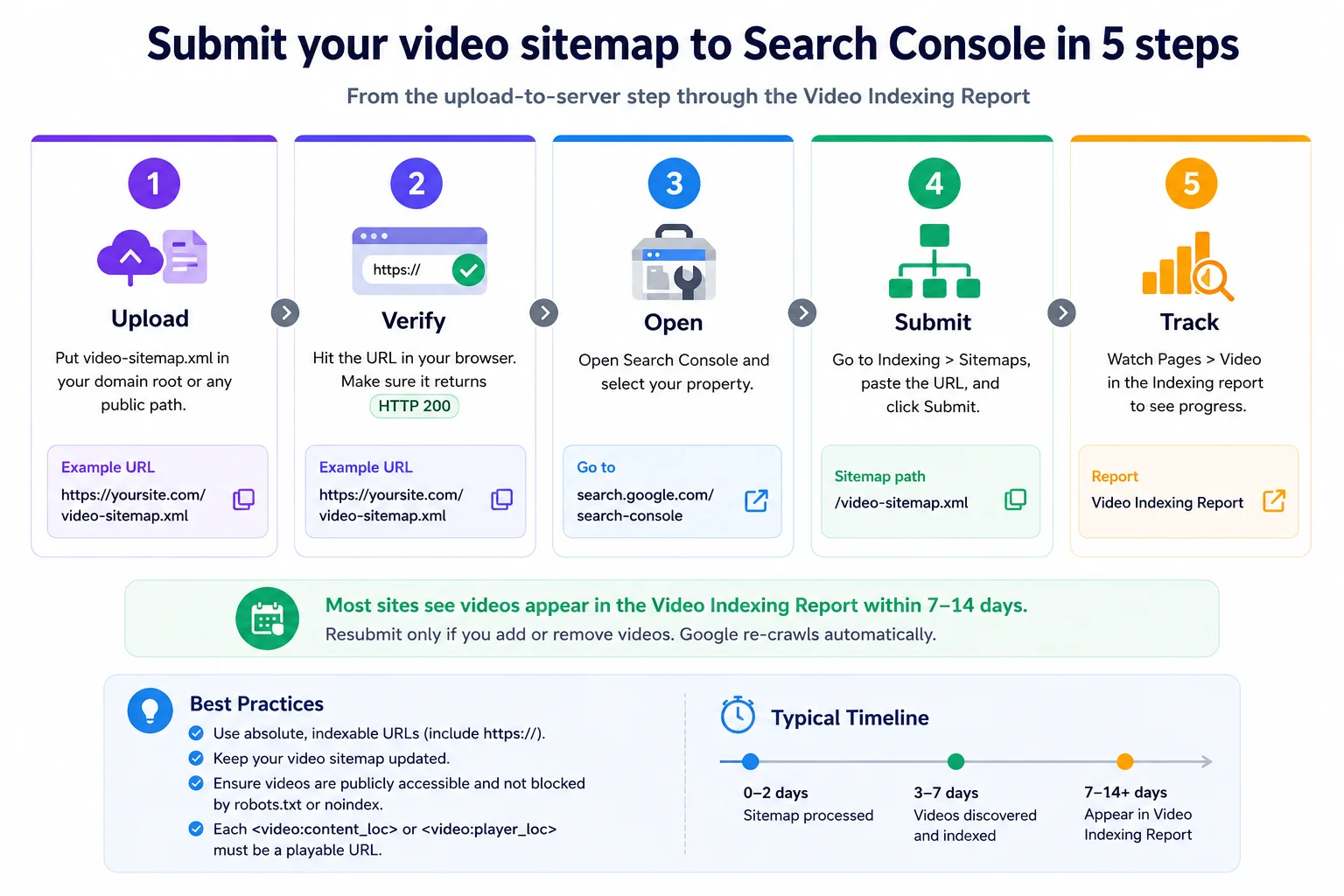
Once your video-sitemap.xml file is built, the submission flow takes about five minutes.
https://yoursite.com/video-sitemap.xml), but any public path on the same domain works. WordPress users with Yoast or Rank Math installed can also configure those plugins to generate and host it automatically.You only need to resubmit if you add or remove videos and want to nudge re-crawling. Otherwise Google revisits the sitemap on its own schedule (typically every few days for active sites).
If you run WordPress, the major SEO plugins can produce a video sitemap automatically by detecting video embeds on your pages. Yoast SEO has a video sitemap module (paid Premium add-on). Rank Math includes video sitemap in the free version. AIOSEO Pro has it too. The trade-off: these plugins generate the sitemap from your existing content, so the metadata is whatever the plugin can extract from embed URLs and surrounding page text. For more control over title, description, and thumbnail per video, you write the XML by hand or use a dedicated generator.
If you do not want to install a plugin or hand-roll the XML, the free Pixellize Video Sitemap Generator crawls your site, detects YouTube, Vimeo, and HTML5 video embeds across up to 250 pages, and outputs a Google-compliant XML file with all 5 required tags populated. Runs in your browser, no signup, no plugin install.
<video:thumbnail_loc> must be a real image URL that returns HTTP 200 and is at least 160 x 90 pixels.<video:publication_date> must be ISO 8601 (2026-04-15T08:30:00+00:00). Just a date string like April 15, 2026 fails.player_loc with an iframe URL instead.<video:title> gets truncated or rejected.<loc> must actually host or embed the video you describe. If you list a video that lives on a different page, Google rejects the entry.Honesty about scope, because this gets oversold. A video sitemap helps Google discover videos and store the metadata. It does not guarantee ranking in Google Video search (that depends on watch time, click-through rate, page quality, and overall site authority). It does not affect normal text-based Google search rankings for the page hosting the video. It does not work for videos that are behind a login or paywall (Google cannot crawl those). And it does not replace good on-page video markup and metadata in the page HTML itself.
Realistic timeline: 7 to 14 days for the first videos to show up in the Video Indexing Report for most sites. New domains or sites with low crawl frequency can take 3 to 6 weeks. The single biggest accelerator is having your site already verified in Search Console with healthy indexing of regular pages. If your text pages get crawled daily, video sitemap discovery follows the same cadence.
If after 30 days the Video Indexing Report shows zero videos discovered, the most common cause is a sitemap URL that returns HTTP 200 but with a Content-Type header other than application/xml or text/xml. Check the server response headers, not just the body.
A video sitemap is a small XML file that pays back its setup cost the first time Google indexes a video you would otherwise have lost. The five required tags are easy to populate. Submitting to Search Console takes five minutes. The hardest part is generating accurate metadata at scale, which is exactly the problem a dedicated tool solves. Whether you hand-roll the XML, use an SEO plugin, or run a free generator, knowing how to submit a video sitemap to Google Search Console is one of the few SEO tasks where the effort-to-reward ratio is overwhelmingly in your favor.
Generate yours in two minutes with the free Pixellize Video Sitemap Generator, then walk through the 5-step submission above.
Upload your video-sitemap.xml file to a public path on your domain (typically the site root), verify the URL returns the raw XML in a browser, open Google Search Console for your verified property, navigate to Indexing > Sitemaps, paste the full URL, and click Submit. The status should change to Success within a few minutes. Track indexing under Pages > Video in the Search Console reports.
Google requires five fields per entry: <loc> (the page URL hosting the video), <video:title> (max 100 chars), <video:description> (max 2,048 chars), <video:thumbnail_loc> (image URL, min 160x90 px), and either <video:content_loc> (direct video file URL, preferred) or <video:player_loc> (player iframe URL). Optional but useful tags include duration, publication_date, and family_friendly.
The conventional location is the site root: https://yoursite.com/video-sitemap.xml. Any public path on the same domain works. Make sure the URL returns the raw XML with Content-Type application/xml or text/xml, not an HTML preview or 404. Subdomains require a separate Search Console property and their own sitemap.
Most sites see videos appear in the Search Console Video Indexing Report within 7 to 14 days. New domains or sites with low crawl frequency can take 3 to 6 weeks. The biggest accelerator is having your site already verified in Search Console with healthy regular indexing. If 30 days pass with zero videos discovered, check the sitemap URL response headers, not just the body.
Yes. Rank Math includes video sitemap in the free version. Yoast SEO has a paid Premium video module. AIOSEO Pro also generates one. They detect video embeds on your pages and produce the XML automatically. The trade-off is less control over per-video metadata. For more precision, write the XML by hand or use a dedicated generator that crawls your site.
Both are accepted. Google allows video sitemap tags directly inside an existing sitemap (you add the video namespace to the urlset element). A standalone video-sitemap.xml file is easier to debug and update, so most sites with more than a handful of videos prefer that approach. Either way, submit the URL to Search Console.
Common causes: thumbnail URL returns 404 or is below 160x90 px, publication_date is not in ISO 8601 format, content_loc points to a video file that requires authentication, page at <loc> does not actually contain the video described, or the sitemap URL itself returns the wrong Content-Type header. Check each entry against the error messages in the Video Indexing Report.

Founder and CEO of Pixellize.io, building AI-powered web tools and digital products with a focus on user experience and automation. M.Sc. Zoology, working at the intersection of technology, data analytics, and life sciences.