
How to Convert a Twitter Thread to PDF (Free, No App)
A great Twitter thread can vanish overnight. The account gets suspended, the author deletes it, or X changes what you can see…
Read article
The first time I needed a photo out of a PDF, I did the dumb thing: I took a screenshot, cropped it, and shipped it. It looked soft and a little gray, and I knew it. Turns out that image was sitting inside the file at full print resolution the whole time, waiting to be copied out cleanly. That is what extraction does, and once you know how, you will never screenshot a PDF again. The quickest way to extract images from PDF files is to pull the embedded originals straight out, and our free PDF Image Extractor does exactly that in your browser. This guide walks through that method and four others, so you can match the tool to the job.
| Method | Best for | Quality | Cost |
|---|---|---|---|
| Online browser tool | Quick, private, bulk ZIP | Original (native) | Free |
| Adobe Acrobat | People already paying for it | Original | Paid |
| Copy and paste | Grabbing one image fast | Hit or miss | Free |
| Command line (pdfimages) | Power users and scripts | Original | Free |
| Python (PyMuPDF) | Batch across many files | Original or set DPI | Free |
Extracting images from a PDF means pulling out the original photo and graphic files that were embedded in the document, saved as separate PNG or JPG files at their stored resolution. It is different from converting a page to an image, which flattens everything on the page into one picture.
Here is the part most tools gloss over. A PDF is really a container. When someone drops a photo into it, the original file rides along inside, often at print quality. Extraction reaches in and copies that file out, untouched. Conversion does the opposite: it photographs the whole page, text and all, and hands you the snapshot. Want the clean logo without the paragraph wrapped around it? You want extraction. This trips up a lot of people, so it is worth seeing side by side.
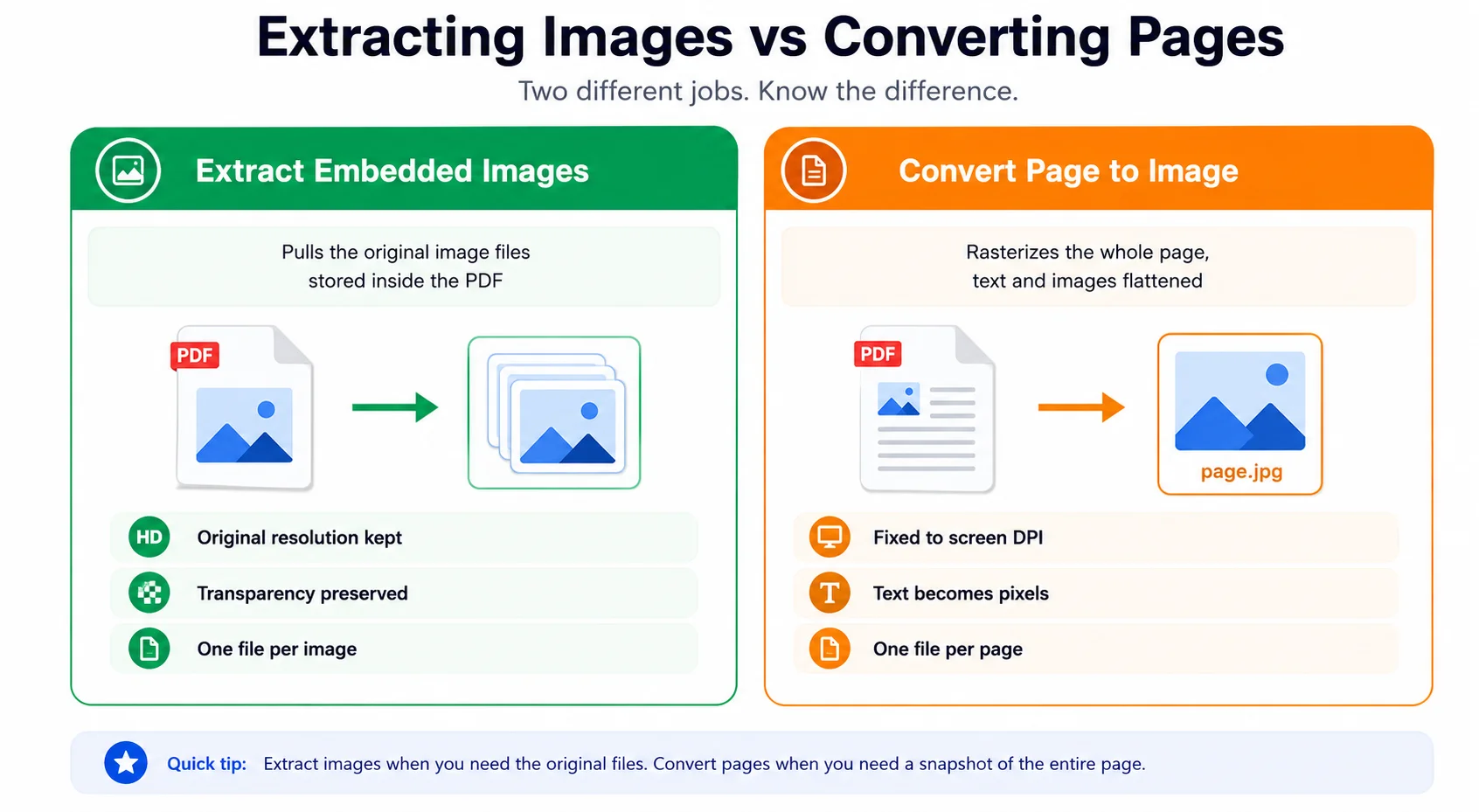
If the page-as-picture version is actually what you need, that is a separate job. Our PDF to JPG converter guide covers it. Keep the two straight and you stop downloading the wrong thing.
You can extract images from PDF documents in five ways, and they trade ease for control. The browser tool is the one most people should grab first. The command line and Python routes are there for when you are chewing through hundreds of files. Here they are, easiest to most technical.
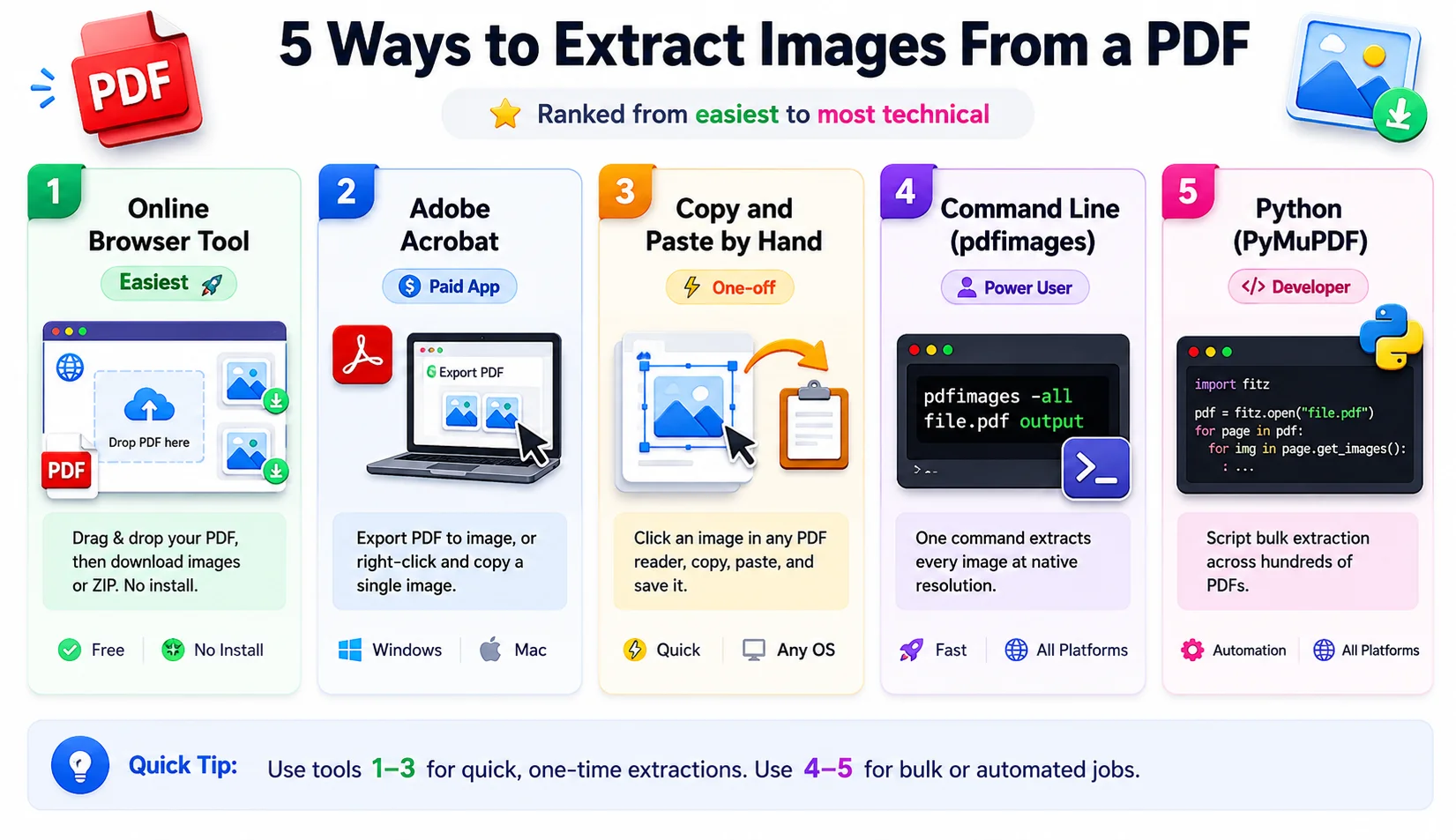
This is the route I reach for nine times out of ten. Open the Pixellize PDF Image Extractor, drag your file onto the drop zone, and it reads every page for embedded images. Save them one at a time as PNG, or grab the whole batch as a single ZIP. Here is what it looks like when you land on it.
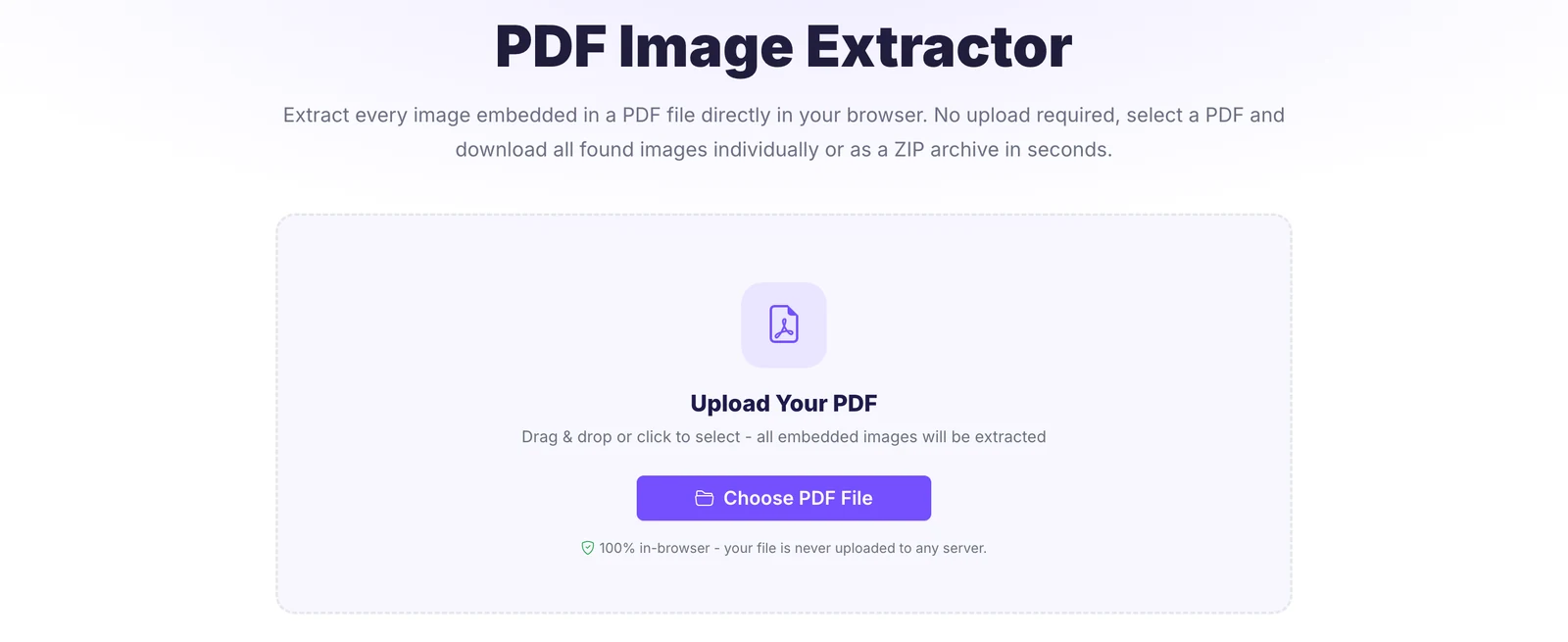
The detail that sold me: the file never leaves your device. Everything runs in the browser, so a contract, a medical scan, or an unreleased mockup never touches a server. No size caps, no signup, no watermark. Pixellize built it this way on purpose, because uploading a private document just to grab one logo always felt backwards.
Skip the manual steps. Drop your file into the free Pixellize PDF Image Extractor and download every image as a ZIP in one click.
Already paying for Acrobat Pro? It has this built in. Open the PDF, head to the export options, and send every image to a folder of PNG or JPG files. For a single image, right-click it, choose Copy Image, and paste it wherever you need it. Acrobat holds the original resolution, so quality is not the catch here. Price is. The subscription runs about 20 dollars a month, which stings if extracting images is the only thing you came for.
Need exactly one image and nothing else? Skip the tools. Open the PDF in almost any reader, click the image, copy it, paste into an editor, and save. Honestly, this one is a coin flip. Some readers paste at screen resolution instead of the embedded size, and picking the right object on a crowded page gets fiddly fast. Fine for a one-off. Weak for anything you care about.
If you live in a terminal, you probably already have this, or it is one install away. The pdfimages command, part of the open-source Poppler suite, yanks every embedded image out at its native format and resolution with no resampling. One line does the whole document.
pdfimages -all report.pdf out/imgThat writes out/img-000.png, out/img-001.jpg, and so on, each in whatever format it was stored as. You cannot ask it for a custom resolution, and that is the point: it hands you the originals, nothing upscaled or squashed. The Poppler project has install notes for every platform.
Got a folder of 300 invoices? Automate it. PyMuPDF reads each page, lists the embedded images, and writes them to disk. A dozen lines clears an entire archive, and you can set a target DPI when you want a specific size instead of the original.
import fitz  # PyMuPDF
doc = fitz.open("report.pdf")
for page in doc:
    for i, img in enumerate(page.get_images(full=True)):
        pix = fitz.Pixmap(doc, img[0])
        pix.save(f"page{page.number}_img{i}.png")
The official PyMuPDF image recipes handle the annoying cases, like CMYK images and masks, that break simpler scripts. Overkill for one file. Exactly right for a thousand.
To extract images from a PDF without losing quality, use a tool that pulls the embedded files directly instead of screenshotting or converting pages. Direct extraction keeps each image at the exact resolution it was saved at, so a 3000 pixel photo comes out as 3000 pixels, not shrunk to screen size.
Think of it like copying a file versus photographing your monitor. A screenshot can only capture what your display shows, often 96 DPI, so a print-quality image at 300 DPI loses most of its detail the second you snap it. That gray, fuzzy crop I mentioned at the top? That was the screenshot tax. Direct extraction copies the file itself, pixel for pixel. The Pixellize browser tool, pdfimages, Acrobat export, and PyMuPDF all do this. Copy and paste sometimes does not, which is why method 3 sits near the bottom.
One more thing on quality: the format you save into matters as much as the extraction. Re-save a crisp PNG as a low-quality JPG and you undo the work. Our breakdown of the best image format for web covers when to keep PNG and when JPG or WebP wins.
Two kinds of files need a bit of extra care. Password-protected PDFs are locked, so any tool has to get past that lock first. The Pixellize extractor asks for the password and uses it only on your device, never sending it anywhere. Acrobat and pdfimages both take a password flag too. Without it, nothing can read the content, which is the whole reason the lock exists.
Scanned PDFs are the other case, and they surprise people. A scan is usually one big image per page, so extraction gives you exactly that: one image per page at the scan resolution. That is correct, not a bug. If what you really want is the text off the scan, you need optical character recognition instead. Our free image to text tool reads the words out of a scanned page so you can copy them.
Your PDF shows no images to extract when its visuals are vector graphics, such as logos, charts, and line art drawn as math paths rather than stored as photo files. Extraction tools only find embedded raster images like PNG and JPG, so a PDF built entirely from vectors returns nothing.
This caught me off guard the first time I hit it. A slide deck exported to PDF can look packed with graphics and still hold zero extractable images, because every shape is a vector instruction, not a picture. When you must have a picture out of it, convert the page to an image and crop the piece you want. It is lower quality than a true extraction, but for vector content it is the only road. Run the page through a PDF to JPG converter and crop from there.
Dodge those five and your images come out clean every time. Did you know a single marketing PDF often holds product shots at higher resolution than the versions posted publicly? Extraction is sometimes the only way to recover a high-res original you thought was gone for good.
So that is how to extract images from PDF files five different ways, from a one-click browser tool to a Python script that clears a whole folder. For almost everyone, the browser route wins: free, private, original quality, and everything zipped together. Drop your file into the Pixellize PDF Image Extractor and you will have your images before you finish reading this sentence. Need to slim the file down afterward? Our guide on how to compress a PDF without losing quality is the natural next step.
Use a free browser-based tool like the Pixellize PDF Image Extractor. Drag your PDF in, and it scans every page for embedded images, then lets you download them as PNG files or one ZIP. It runs locally with no signup, no watermark, and no file size cap, so it costs nothing and your document stays on your device.
Pull the embedded files directly instead of taking a screenshot. Direct extraction copies each image at the exact resolution stored in the PDF, so a 300 DPI photo stays 300 DPI. A screenshot caps the image at your screen resolution, usually 96 DPI, and loses most of the detail. Browser tools, Acrobat export, and pdfimages all extract directly.
Yes. Most extraction tools pull every embedded image across all pages in one pass. A browser tool bundles them into a single ZIP download. On the command line, one pdfimages command writes every image to a folder. Copy and paste is the only method that handles just one image at a time.
The visuals are likely vector graphics, not photos. Logos, charts, and line art are often drawn as math paths rather than stored as raster image files, and extraction tools only find raster images like PNG and JPG. A PDF built entirely from vectors returns nothing. To get a picture, convert the page to an image and crop it.
Extracted images come out in whatever format they were stored as inside the PDF, usually PNG or JPG. Tools like pdfimages preserve the original format and resolution with no conversion. Some browser tools standardize everything to PNG for convenience. If you need a different format afterward, run the files through an image converter.
Only if the tool processes the file in your browser. Many online extractors upload your PDF to a server, which is risky for sensitive documents. A browser-based tool like the Pixellize extractor does all the work on your own device, so the file and any password never leave your computer. Check that the tool says no upload before using it.

Founder and CEO of Pixellize.io, building AI-powered web tools and digital products with a focus on user experience and automation. M.Sc. Zoology, working at the intersection of technology, data analytics, and life sciences.